
VLAN Trunking with 802.1Q
Learn enterprise network segmentation using Virtual Local Area Networks. Segment Engineering and Sales departments into isolated broadcast domains, configure an 802.1Q trunk link between two switches, and verify that VLAN boundaries enforce security and stop broadcast storms.
Picture a hospital or corporate campus where doctors, financial accounting staff, and waiting-room guests all plug into the same wall jacks. If every machine shared the exact same flat network, a guest laptop infected with malware could broadcast malicious packets across the wire or snoop on confidential financial payroll records.
In the early days of IT, separating departments meant purchasing completely separate physical switches and pulling double the cables through ceiling ducts. Modern enterprise networks solve this using Virtual Local Area Networks (VLANs). VLANs allow network engineers to slice a single physical switch into multiple isolated virtual networks, providing enterprise security and eliminating broadcast congestion.
Network segmentation rests on two distinct port disciplines: access ports that attach directly to single endpoints without tagging, and trunk ports that multiplex frames across switches by inserting an IEEE 802.1Q encapsulation header on the wire.
Network Architecture Plan
| Segment | Interface | Subnet / Address | Functional Role |
|---|---|---|---|
| VLAN 10 (Sales) | FastEthernet0/1 | 192.168.10.0/24 | Sales Department User Access |
| VLAN 20 (Engineering) | FastEthernet0/2 | 192.168.20.0/24 | Engineering Department User Access |
| Switch Trunk Link | GigabitEthernet0/1 | 802.1Q Tagged | Inter-switch multi-VLAN backbone trunk |
| Access Switch 1 & 2 | FastEthernet0/1 - 0/24 | Layer 2 Hardware | Floor distribution switches |
Flat Networks Versus VLANs
When an office network connects every computer to a single unmanaged switch without segmentation, it creates what network engineers call a Flat Network. In a flat network, every connected device shares one massive Layer 2 broadcast domain.
Whenever a computer sends an ARP request to the broadcast MAC address FF:FF:FF:FF:FF:FF, the switch must flood that frame out of every single active port. This forces every network card in the building to wake its CPU to examine the packet, wasting CPU cycles on hundreds of unintended computers.
If a faulty network card begins spewing malformed frames, or an employee accidentally plugs a cable between two switch ports creating a loop, the resulting broadcast storm consumes 100% of bandwidth and halts all company communications.
Furthermore, flat networks provide zero confidentiality. Any user running packet analysis software can capture unencrypted traffic traveling between neighboring workstations. By implementing VLANs, you divide a single physical switch into isolated logical broadcast domains. Traffic inside VLAN 10 (Sales) cannot physically cross over to VLAN 20 (Engineering) without passing through an explicit Layer 3 security firewall or router.
Real-world field story: Two switches had mismatched native VLANs (VLAN 1 on Switch A and VLAN 99 on Switch B). Untagged frames sent by Switch A were received and deposited directly into the management VLAN of Switch B, leaking internal switch traffic until the trunk configuration was fixed.
Configuring Switch Access Ports
Ethernet ports on an enterprise managed switch operate in one of two fundamental modes: Access Ports or Trunk Ports.
An Access Port belongs to exactly one VLAN and connects directly to end-user devices (PCs, printers, laptops). Client computers know nothing about VLANs; they simply transmit normal, standard Ethernet frames.
When an untagged frame enters an access port, the switch internally stamps it with the port configured VLAN ID. When the switch delivers a frame out of an access port to a destination PC, it strips that internal tag off completely so the computer receives a clean, standard Ethernet frame.
Configuration begins on Switch 1 by declaring VLAN IDs inside the database: vlan 10 labeled `Sales` and vlan 20 labeled `Engineering`. Next, bind physical port `Fa0/1` to VLAN 10 and `Fa0/2` to VLAN 20.
The configuration uses a two-step sequence: switchport mode access explicitly disables dynamic trunk negotiation, while switchport access vlan 10 binds the interface to that broadcast segment.
Switch1# configure terminal
# Step 1: Create VLAN definitions in the switch database
Switch1(config)# vlan 10
Switch1(config-vlan)# name Sales_Dept
Switch1(config-vlan)# exit
Switch1(config)# vlan 20
Switch1(config-vlan)# name Eng_Dept
Switch1(config-vlan)# exit

# Step 2: Assign FastEthernet0/1 to VLAN 10
Switch1(config)# interface FastEthernet0/1
Switch1(config-if)# switchport mode access
Switch1(config-if)# switchport access vlan 10
Switch1(config-if)# exit

# Step 3: Assign FastEthernet0/2 to VLAN 20
Switch1(config)# interface FastEthernet0/2
Switch1(config-if)# switchport mode access
Switch1(config-if)# switchport access vlan 20
Switch1(config-if)# exit
Analyzing the access port configuration steps:
vlan 10 and name Sales_Dept: Allocates a dedicated broadcast domain in switch RAM and assigns a descriptive label for network documentation.switchport mode access: Explicitly sets the port mode to access, preventing rogue client workstations from attempting trunk negotiation attacks.switchport access vlan 10: Associates the physical interface FastEthernet0/1 with VLAN 10. All frames entering this port are assigned to VLAN 10 internally.Security best practice: Always configure "switchport mode access" statically on user-facing ports rather than relying on dynamic auto-negotiation. This prevents attackers from using Dynamic Trunking Protocol (DTP) to negotiate unauthorized trunks.
Analyzing 802.1Q Trunk Headers
In multi-switch campus networks, you cannot run a separate physical cable between switches for every single VLAN—doing so would waste dozens of expensive switch ports. Instead, you connect switches using a high-speed Trunk Link.
A trunk link carries frames from multiple VLANs simultaneously across a single physical wire. To prevent frames from getting mixed up, the transmitting switch inserts a special 4-byte IEEE 802.1Q header tag into the Ethernet frame directly after the Source MAC address.
The 4-byte IEEE 802.1Q encapsulation header consists of four dedicated bit fields:
0x8100. This identifies the frame as an 802.1Q tagged frame.When the receiving switch reads the 802.1Q tag, it strips the tag off and forwards the original frame strictly to the matching VLAN ports on its side.
+-------------------+-------------------+
|  TPID (16 bits)   |    TCI (16 bits)  |
|      0x8100       | PCP (3) | DEI (1) | VID (12 bits) |
+-------------------+---------+---------+---------------+
Field   Size     Value / Meaning
-----   ----     ---------------
TPID    16 bits  0x8100 (Identifies 802.1Q encapsulation)
PCP     3 bits   0-7 (Priority Code Point / Class of Service)
DEI     1 bit    0 or 1 (Drop Eligible Indicator under congestion)
VID     12 bits  1-4094 (VLAN Identifier matching virtual segment)
Examining the 802.1Q encapsulation format:
Standard Ethernet frames have a maximum transmission unit (MTU) of 1518 bytes. The 4-byte 802.1Q tag extends the maximum frame size to 1522 bytes (baby giant frames), which all modern managed switches support natively.
Configuring Inter-Switch Trunk Links
Now connect GigabitEthernet0/1 on Switch 1 to GigabitEthernet0/1 on Switch 2 using a straight-through cable.
On the interface CLI, configure the port with switchport mode trunk. Applying switchport trunk allowed vlan 10,20 restricts trunk traffic strictly to active departments, stopping unnecessary broadcasts from traveling across the backbone.
Repeat the matching configuration on Switch 2 to ensure both ends of the cable agree on trunking mode and allowed VLANs.
Switch1# configure terminal
Switch1(config)# interface GigabitEthernet0/1
# Lock interface into permanent trunking mode
Switch1(config-if)# switchport mode trunk
# Restrict allowed traffic to only authorized VLANs
Switch1(config-if)# switchport trunk allowed vlan 10,20
Switch1(config-if)# exit

# Repeat matching trunk configuration on Switch 2
Switch2# configure terminal
Switch2(config)# interface GigabitEthernet0/1
Switch2(config-if)# switchport mode trunk
Switch2(config-if)# switchport trunk allowed vlan 10,20
Switch2(config-if)# exit
Analyzing trunk port configuration parameters:
switchport mode trunk: Forces the GigabitEthernet0/1 interface into permanent 802.1Q trunking mode, disabling Dynamic Trunking Protocol negotiation.switchport trunk allowed vlan 10,20: Prunes all other VLANs from the trunk. Only frames tagged with VID 10 or VID 20 are allowed to enter or exit this link.Trunk pruning best practice: By default, Cisco switches allow VLANs 1-4094 on all trunk links. Always configure explicit allowed VLAN lists to stop unnecessary broadcast traffic from flooding across inter-switch uplinks.
Verifying Cross-Switch VLAN Isolation
Now verify that our VLAN segmentation policy operates as intended. Open the terminal on Sales PC 1 (`192.168.10.10`) and on Switch 1 to test trunking state and ICMP reachability across subnets.
First, inspect the trunk status on Switch 1 using show interfaces GigabitEthernet0/1 trunk.
Next, send ping requests from Sales PC 1 to Sales PC 2 (`192.168.10.20`) on Switch 2, and then to Engineering PC (`192.168.20.10`).
Analyzing verification command results:
show interfaces trunk, the Mode confirms on, Encapsulation confirms 802.1q, and Status shows trunking across authorized VLANs 10 and 20.Layer 2 security confirmation: VLAN isolation is enforced directly by switch ASICs in hardware. A packet in VLAN 10 cannot jump to VLAN 20 without an authorized Layer 3 routing hop, providing true network-level isolation.

Related Network Labs
Continue your network simulation practice with these recommended labs.
Building a Local Office LAN with a Switch
Setting Up a Local Web Server
Preventing Loops with Spanning Tree
Securing Switch Ports with Port Security
Bundling Switch Uplinks with LACP EtherChannel
Inter-VLAN Routing with Router-on-a-Stick
Dynamic Routing with Single-Area OSPF
Gateway Redundancy with HSRP Failover
Filtering Traffic with Extended ACLs
Connecting LAN to Internet with NAT
Resolving Domain Names with Local DNS
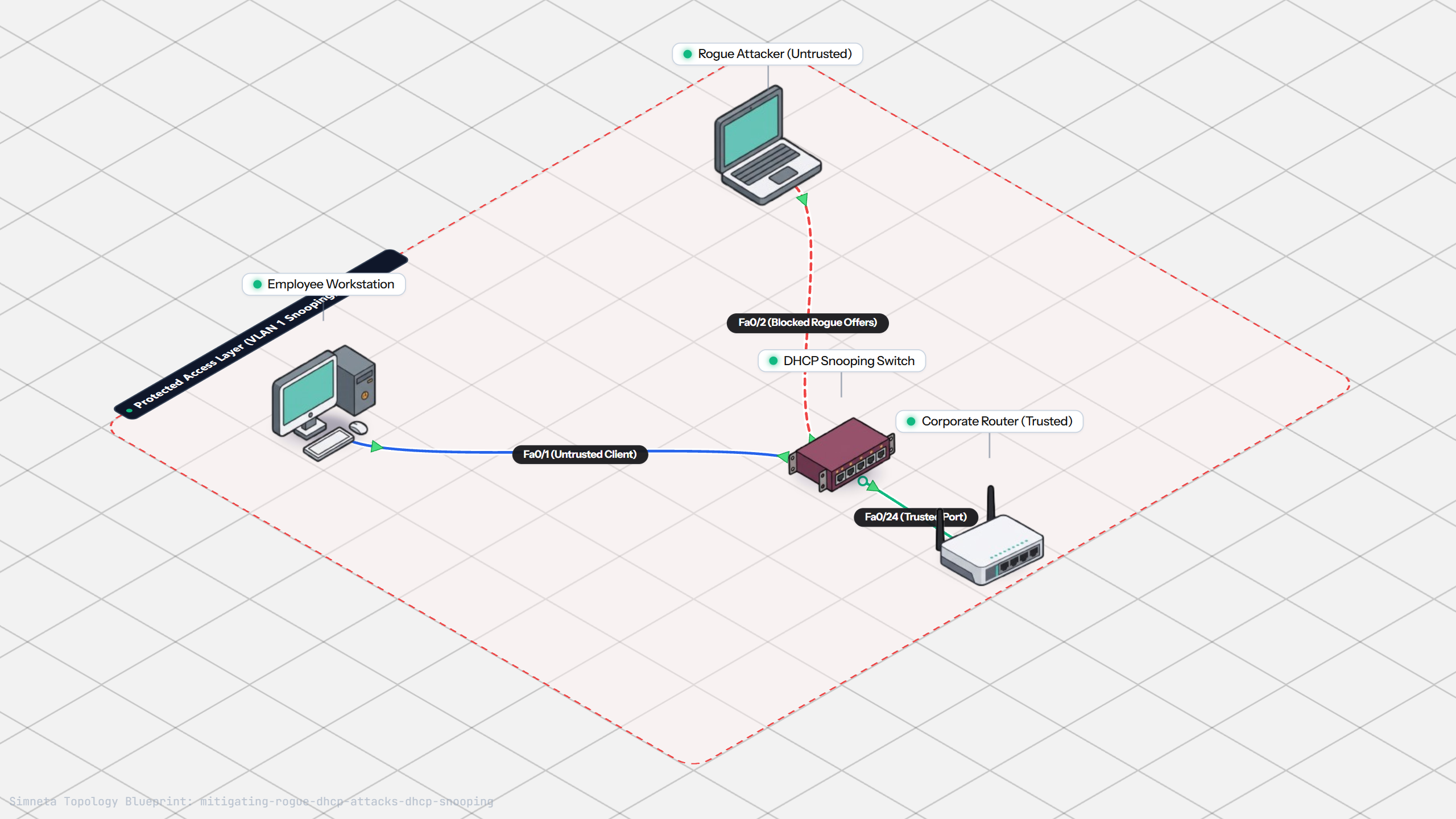
Stopping Rogue DHCP with Snooping
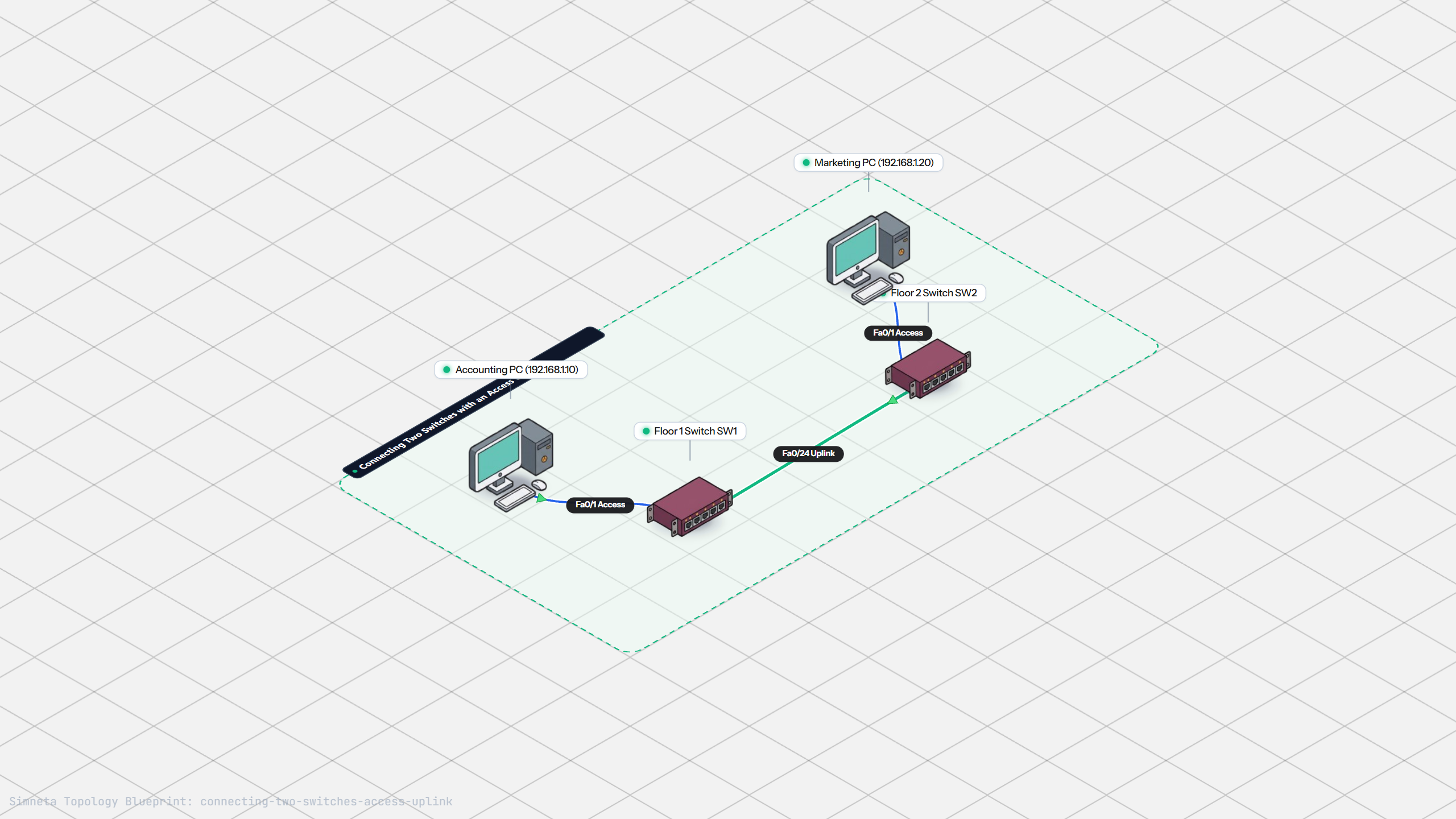
Connecting Two Switches with an Access Uplink
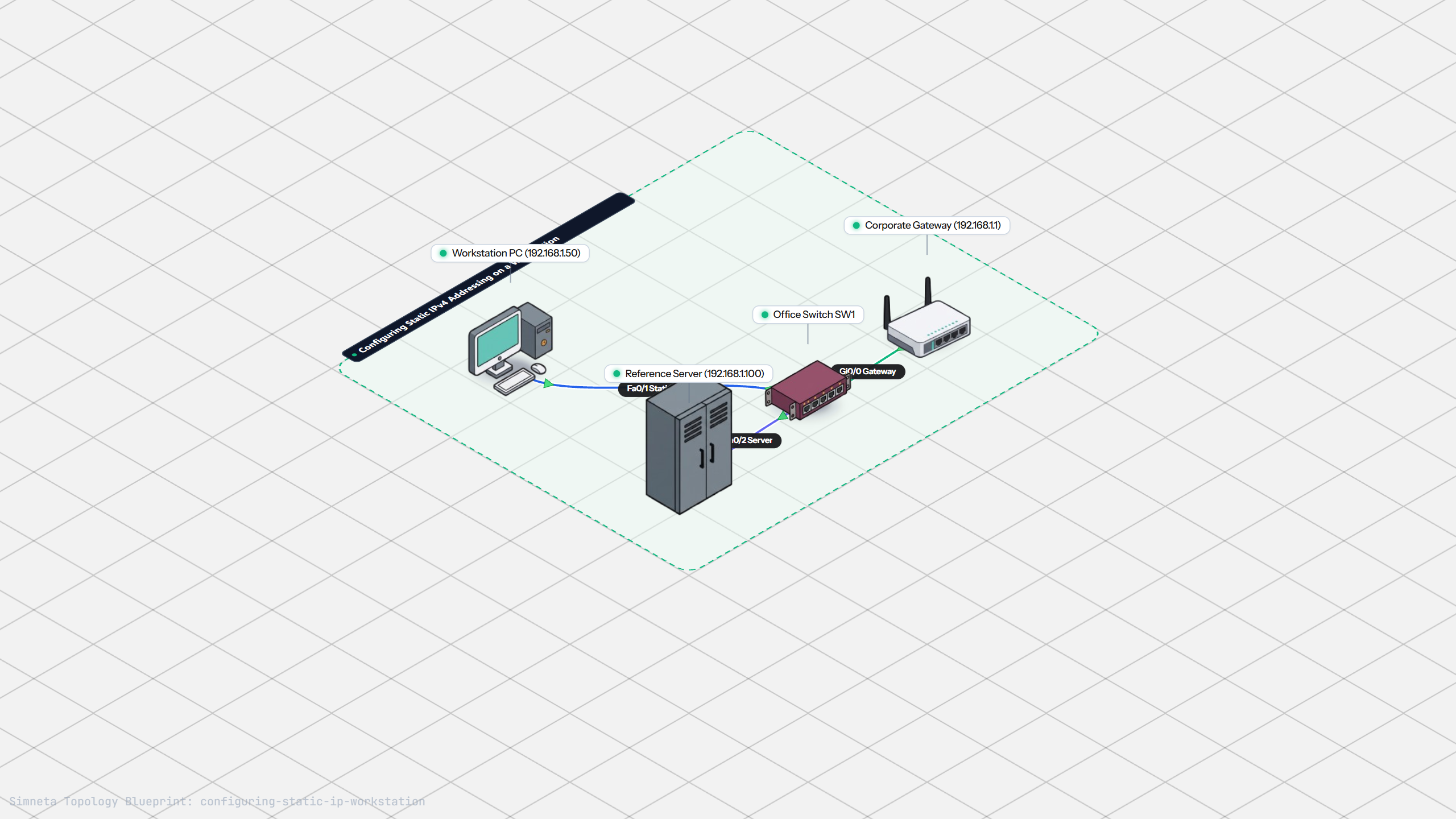
Configuring Static IP on Workstation
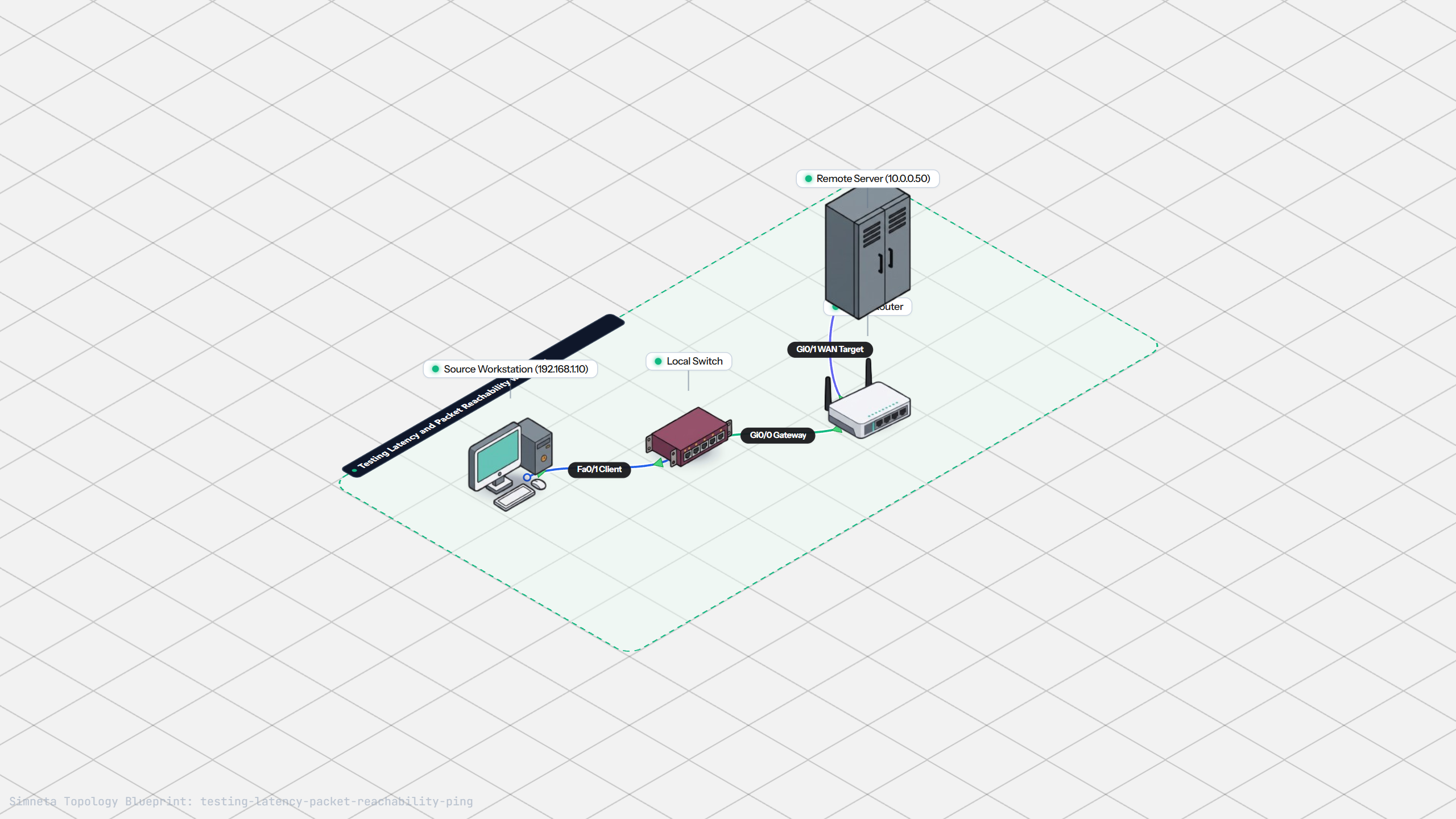
Testing Reachability and Latency with Ping
Inspecting ARP Cache Tables
Setting Up DHCP Static Reservations
Connecting Routers with /30 Subnet
Configuring Default Static Route to ISP
Blocking Ping with Standard ACL
Port Forwarding for Web Servers
Fixing Default Gateway Misconfigurations
Discussion & Community Notes
Ask questions, share configuration tips, or discuss this laboratory topology.