
Connecting LAN to Internet with NAT
Learn how Network Address Translation (NAT Masquerade) allows multiple computers on a private local network to share a single public IP address to access the internet securely.
In every office and home network, computers use private IPv4 addresses from the RFC 1918 specification, such as 192.168.88.10 or 10.0.0.5. Under the international rules of the Internet Assigned Numbers Authority (IANA), these private addresses are strictly non-routable across the global public internet. If an internal workstation sends a packet directly out to a public web server like 8.8.8.8, public internet service provider routers immediately drop it because they have no way to route a reply back to a private address.
To solve this global address shortage and let an entire office browse the web simultaneously, our gateway router uses a technique called NAT Masquerade (or Port Address Translation / PAT). The router dynamically rewrites the private sender IP of outgoing packets into its own single public IP address, remembering each internal computer conversation so replies find their way back home.
Deploying NAT masquerade requires segmenting public WAN and private LAN interfaces, establishing a default gateway route toward the service provider, building dynamic source translation rules, and tracing stateful mappings inside the connection tracking table.
In this hands-on tutorial, you will configure a MikroTik RouterOS gateway from scratch, establish routing boundaries, activate NAT masquerade, and inspect live packet translation flows.
Network Architecture Plan
| Segment | Interface | Subnet / Address | Functional Role |
|---|---|---|---|
| ISP Public Cloud | WAN0 | 203.0.113.1/30 | Upstream Internet Service Provider gateway |
| Perimeter Gateway WAN | ether1 | 203.0.113.2/30 | Public internet-facing interface |
| Perimeter Gateway LAN | ether2 | 192.168.88.1/24 | Internal local office default gateway |
| Office Access Switch | FastEthernet0/1 - 0/4 | Layer 2 Switching | Distributes wired connections to workstations |
| Office Workstation 1 | FastEthernet0 | 192.168.88.10/24 | Internal client endpoint (Gateway: 192.168.88.1) |
| Office Workstation 2 | FastEthernet0 | 192.168.88.11/24 | Internal client endpoint (Gateway: 192.168.88.1) |
Configuring Router Interface Boundaries
The foundation of every perimeter gateway router is the clean physical separation between the outside untrusted network (WAN) and the inside trusted network (LAN).
On your perimeter router, assign public IP 203.0.113.2/30 to interface ether1 (connected to the ISP cloud). A /30 subnet mask provides exactly two usable host addresses: 203.0.113.1 for the ISP and 203.0.113.2 for our router WAN port.
Next, assign private IP 192.168.88.1/24 to interface ether2 (connected to the local office switch). This IP serves as the default gateway address for all internal office computers.
Verify that the physical link lights turn solid green across both ports, confirming electrical carrier synchronization between WAN and LAN.
/ip address
# Assign public IP provided by ISP on ether1 (/30 point-to-point)
add address=203.0.113.2/30 interface=ether1 comment="Uplink to Public ISP"
# Assign internal private gateway IP on ether2 (/24 local LAN)
add address=192.168.88.1/24 interface=ether2 comment="Local Office LAN"
Parameter-by-Parameter Command Breakdown:
/ip address add: Enters the RouterOS IP address configuration menu to bind logical subnets to physical network interfaces.address=203.0.113.2/30: Binds the public WAN IP. The /30 mask ensures that only the upstream provider router can communicate on this link.interface=ether1: Attaches the public address strictly to the physical port connected to the ISP modem or fiber ONT.address=192.168.88.1/24 interface=ether2: Creates the private default gateway for all corporate office computers on the local switch.comment="...": Attaches documentation tags in RouterOS configuration memory, making port roles obvious in both Winbox and terminal sessions.Physical Port Verification: Before adding routes or NAT rules, always run /ip address print to verify that both addresses display the A (Active) and D (Dynamic/Direct) status flags.
Configuring the Default Gateway
Even with IP addresses properly configured on both interfaces, the router still has no idea where the rest of the world lives. If a client computer asks to open a website at 8.8.8.8, the router searches its internal routing table, fails to find a specific route, and drops the packet with Network Unreachable.
To fix this, install a Default Route (0.0.0.0/0) pointing to the upstream ISP gateway at 203.0.113.1. The default route represents the router path of last resort: whenever a destination IP does not match any local subnet, the router forwards the packet to this ISP gateway.
The /0 prefix indicates that zero bits need to match, allowing any destination IPv4 address across the global internet to match this default route if no more specific subnet exists in the routing table.
With the default route in place, the router itself can now ping the internet, but local office computers still cannot.
/ip route
add dst-address=0.0.0.0/0 gateway=203.0.113.1 comment="Default Internet Gateway"
Analyzing the Default Route Command:
/ip route add: Creates a new routing entry in the RouterOS main routing table.dst-address=0.0.0.0/0: The quad-zero destination prefix matching all external public internet IPv4 addresses.gateway=203.0.113.1: The immediate next-hop IP address of the service provider router across the point-to-point link./ip route print and ensure the route displays DA (Dynamic Active) or AS (Active Static) with reachable ether1.While the router can now reach external servers from its own public IP, internal workstation packets reaching the internet will still be dropped upstream because they carry private source addresses.
Real-world field story: An engineer once added action=masquerade without specifying out-interface=ether1. The router started masquerading internal traffic between local VLANs, breaking company printer discovery and active directory logins until corrected.
How NAT Masquerade Works
The final missing puzzle piece is Network Address Translation. When a packet from Workstation 1 (192.168.88.10) exits toward the internet, the router must replace its private source address with the public IP of ether1 (203.0.113.2).
In RouterOS and Linux iptables, this is called action=masquerade. Masquerade is a specialized form of Source NAT (srcnat) that automatically uses whatever IP address is currently assigned to the outgoing WAN interface.
The router separates distinct client sessions by tracking unique transport port numbers. When Workstation 1 connects to 8.8.8.8:53 from source port 5001, the router rewrites the source to 203.0.113.2:40001 and records this mapping in its Connection Tracking (conntrack) table.
When Workstation 2 also talks to the internet from port 5001, the router assigns a different external port: 203.0.113.2:40002. Through this Port Address Translation (PAT), hundreds of internal workstations can share a single public IPv4 address simultaneously.
/ip firewall nat
# Enable NAT masquerade strictly on outgoing WAN interface
add chain=srcnat out-interface=ether1 action=masquerade comment="Share Public IP"
Parameter-by-Parameter Command Breakdown:
chain=srcnat: Applies to the Source NAT chain, executed after routing decisions when packets are ready to leave the router.out-interface=ether1: Mandatory security condition. Ensures translation occurs ONLY when packets depart through the WAN port toward the ISP. Internal LAN traffic between office ports is completely untouched.action=masquerade: Dynamically inspects the current IP address on ether1 and rewrites the source IP of matching packets to that address.action=src-nat to-addresses=203.0.113.2. However, action=masquerade is ideal for dynamic WAN links (like DHCP or PPPoE) because it automatically updates if the ISP reassigns the WAN IP.The out-interface Trap: Always specify out-interface=ether1 when creating masquerade rules. Omitting this parameter causes the router to rewrite the source IP of internal inter-VLAN packets, breaking local server authentication and printer discovery.
Testing Client Internet Access
Now configure the client endpoints on your canvas. Click Workstation 1 and assign static IP 192.168.88.10 with netmask 255.255.255.0 and default gateway 192.168.88.1.
Configure Workstation 2 with static IP 192.168.88.11 pointing to the same gateway.
Open the CLI terminal on Workstation 1 and execute ping 8.8.8.8. Watch the packet travel across your canvas: the packet leaves PC 1 with private source 192.168.88.10.
As it traverses the router, the router NAT engine rewrites the source address to public IP 203.0.113.2 before pushing it into the ISP Cloud. The reply returns to the router, translates back to 192.168.88.10, and delivers four successful replies.
Analyzing the Echo Reply Metrics:
0% packet loss: Confirms that bidirectional translation works flawlessly across the perimeter boundary.time=11.8 ms - 12.4 ms: Shows normal WAN latency across provider links with zero queuing delays.ttl=118: Google public DNS servers initialize their IP packets with TTL=128. A response of TTL=118 indicates that the return packet traversed exactly 10 routing hops ($128 - 118 = 10$) across the internet before reaching your terminal.Both internal office workstations can now access cloud services, external web servers, and DNS resolvers simultaneously.
DNS Requirement Reminder: Being able to ping 8.8.8.8 confirms Layer 3 IP connectivity. For workstations to open domain names like google.com, you must also configure DNS server IP addresses on the client or via DHCP option 6.
Inspecting NAT Connection Tracking
Open the CLI terminal on the perimeter router and run /ip firewall connection print.
The connection tracking table logs active bidirectional state mappings in real time:
Understanding how connection tracking operates reveals why NAT masquerade also provides automatic inbound security defense.
Examining the Connection Tracking Table Fields:
Flags: C (Confirmed): Indicates that two-way traffic has been successfully established and recorded.ICMP Row: Displays original source 192.168.88.10:1 paired with translated reply target 203.0.113.2:1.TCP Row (ESTABLISHED): Shows client ephemeral port 51240 mapped to external WAN port 40021 on public IP 203.0.113.2.To monitor table utilization during peak hours, administrators use /ip firewall connection tracking print to check current active session limits.
Connection Table Capacity: Every active TCP, UDP, or ICMP session consumes approximately 300 bytes of router RAM. Enterprise routers comfortably track between 100,000 and 1,000,000 concurrent sessions.


Related Network Labs
Continue your network simulation practice with these recommended labs.
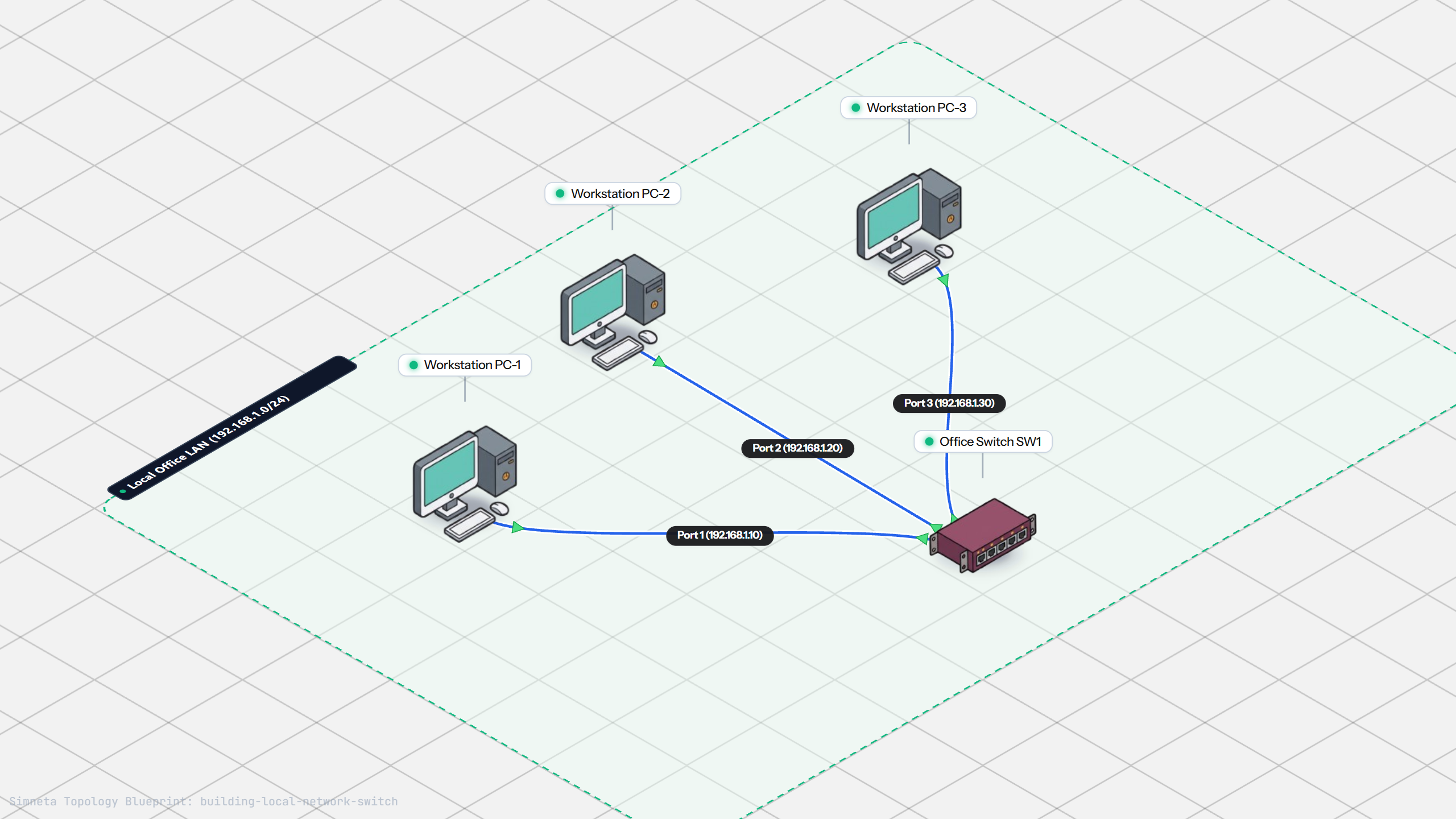
Building a Local Office LAN with a Switch
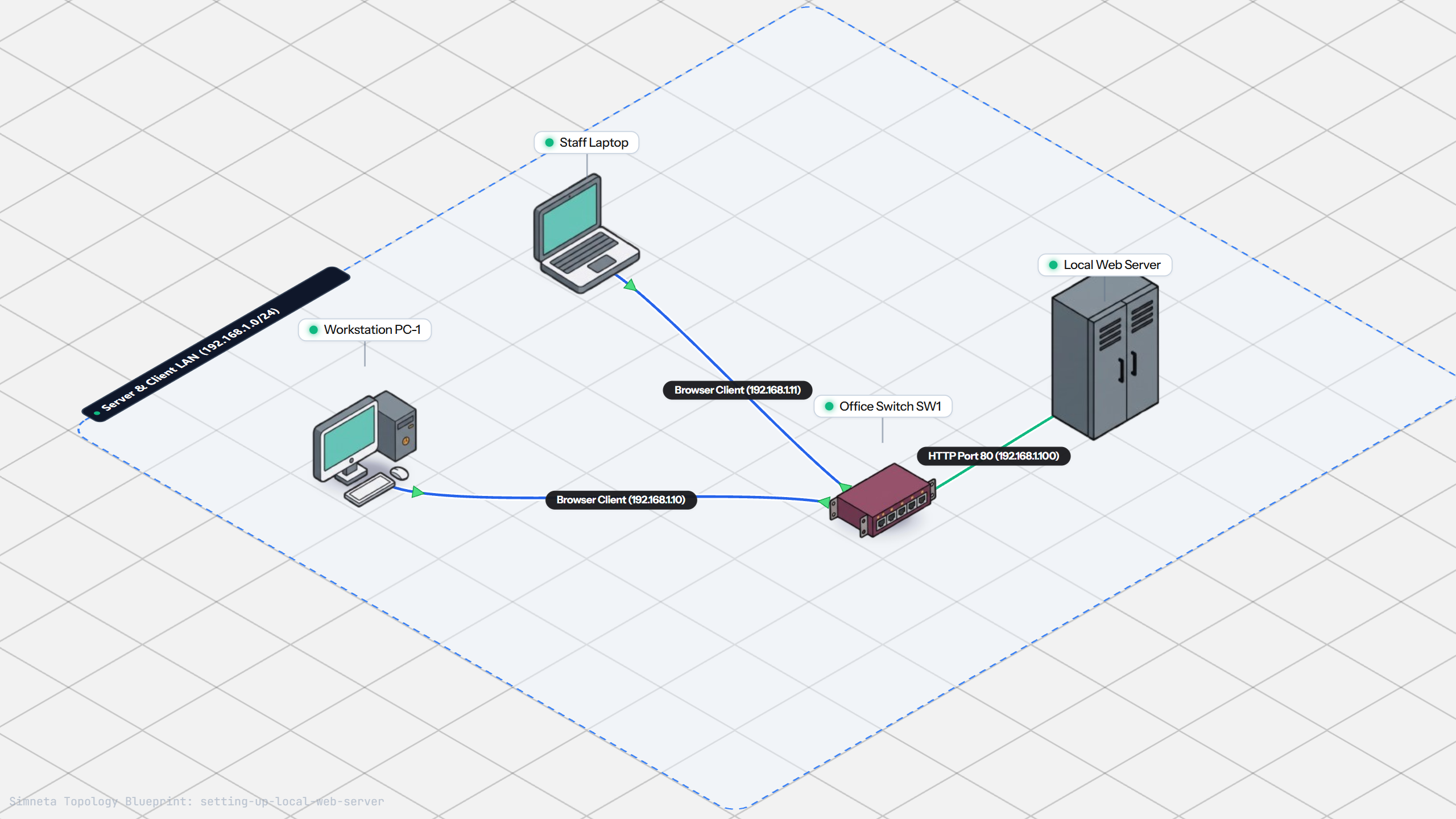
Setting Up a Local Web Server
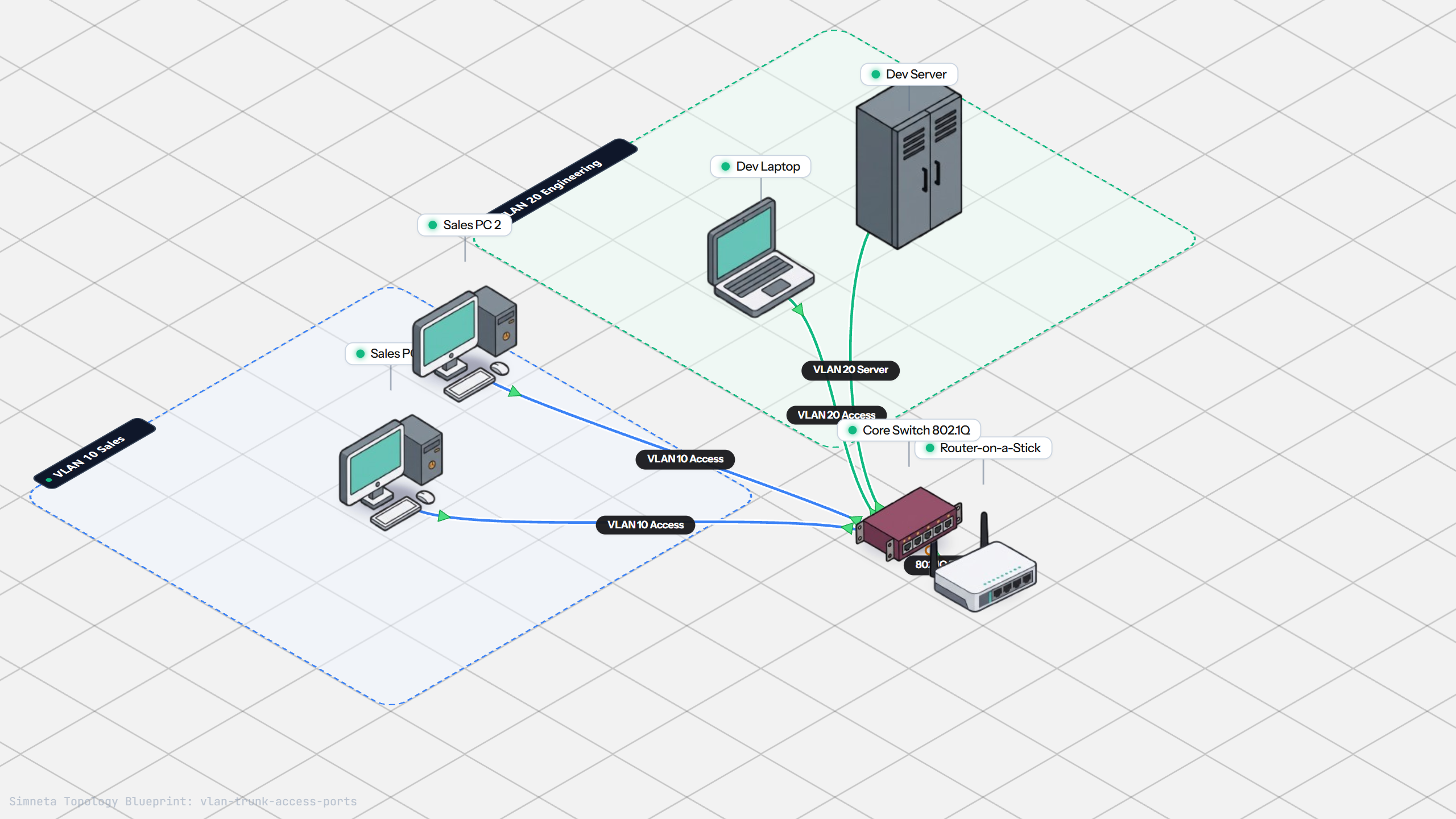
VLAN Trunking with 802.1Q
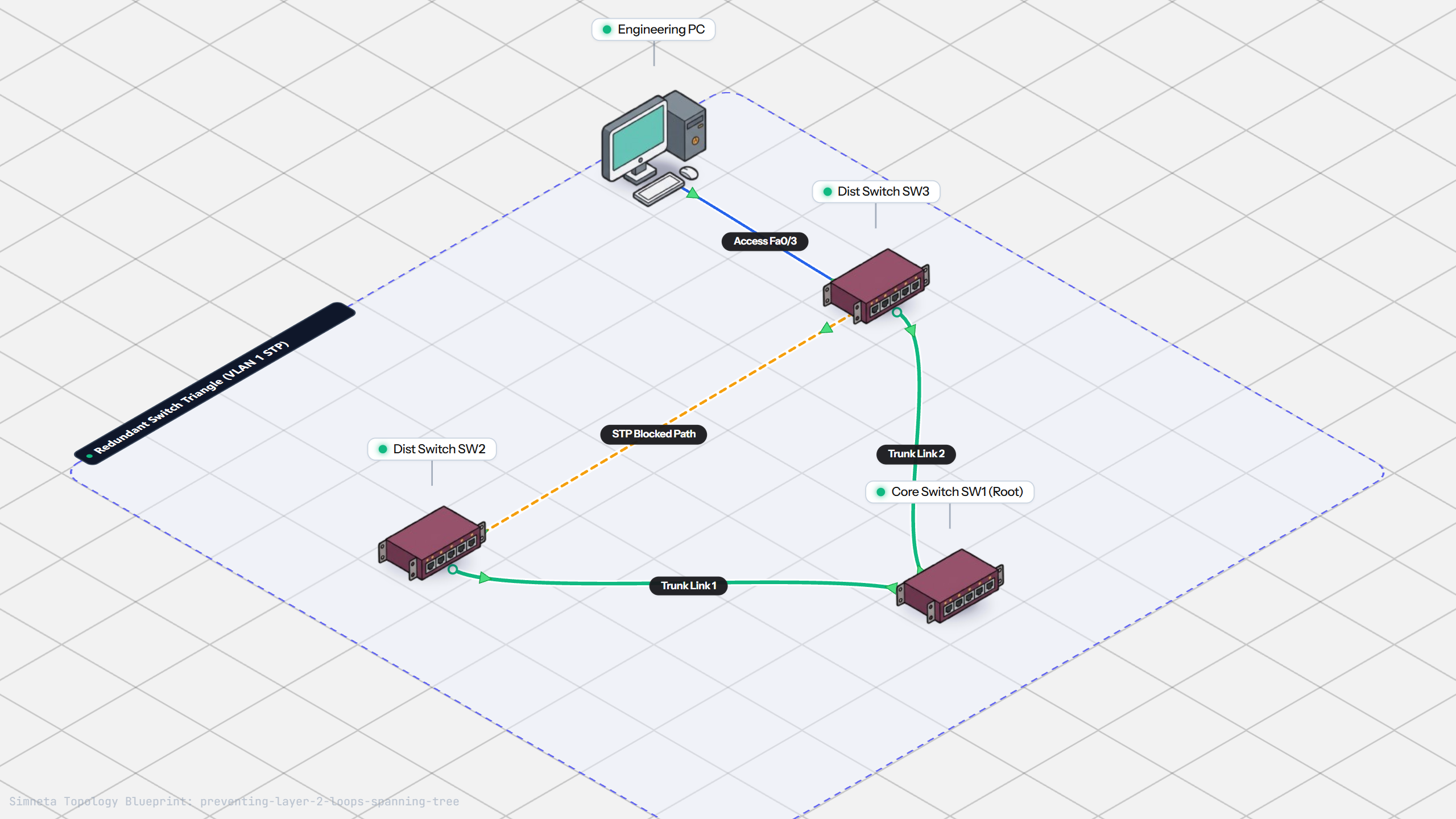
Preventing Loops with Spanning Tree
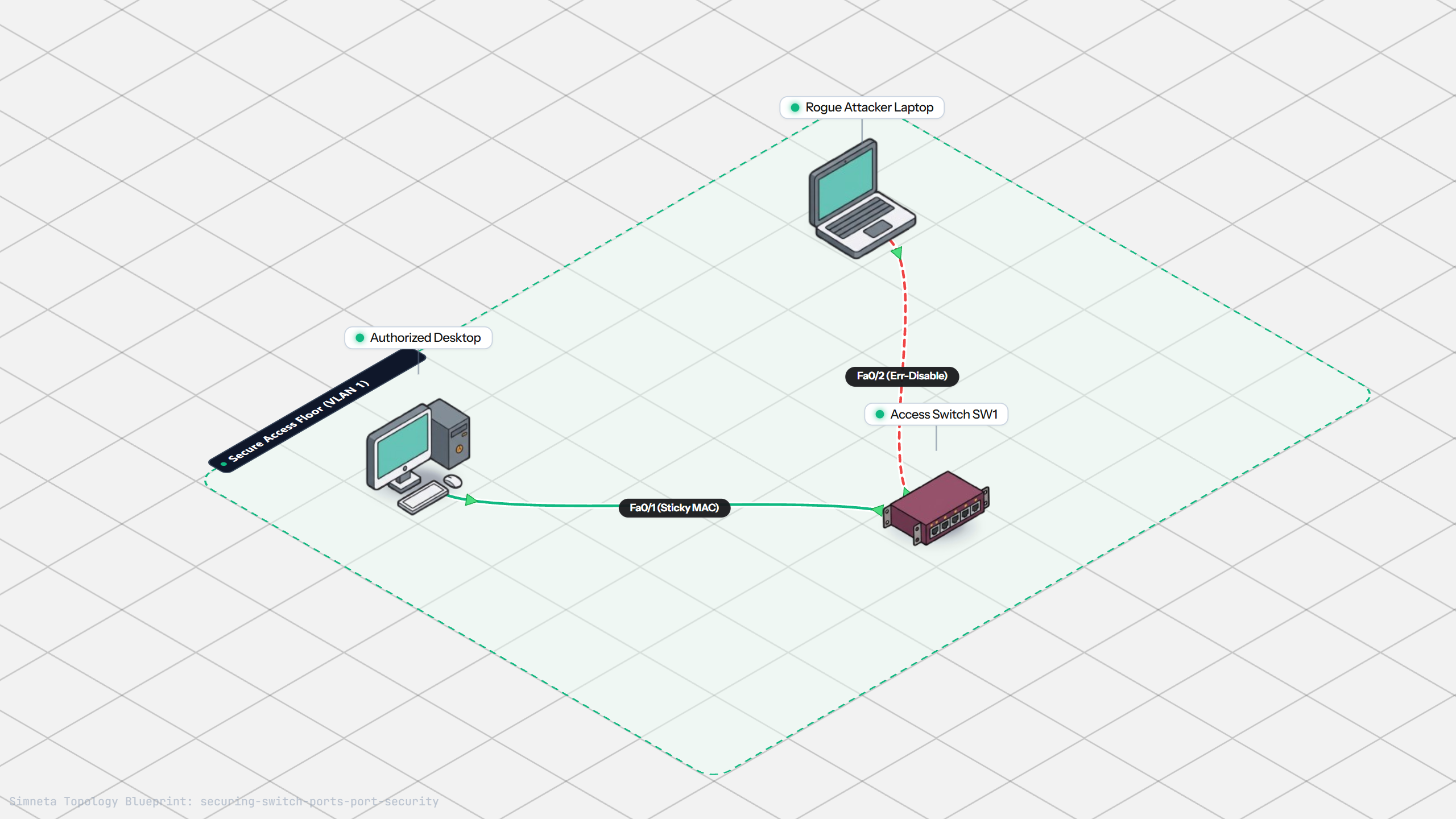
Securing Switch Ports with Port Security
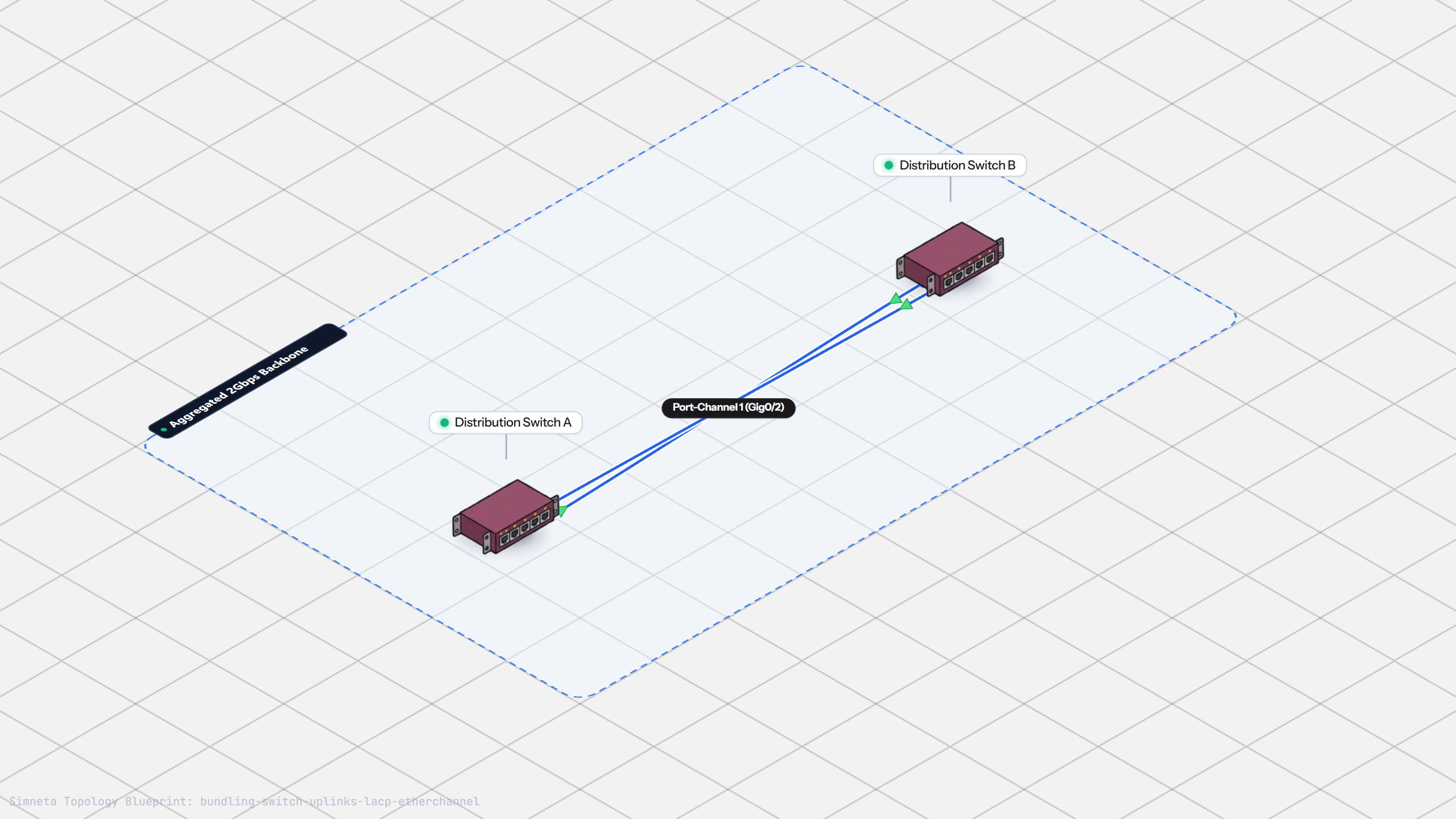
Bundling Switch Uplinks with LACP EtherChannel
Inter-VLAN Routing with Router-on-a-Stick
Dynamic Routing with Single-Area OSPF
Gateway Redundancy with HSRP Failover
Filtering Traffic with Extended ACLs
Resolving Domain Names with Local DNS
Stopping Rogue DHCP with Snooping
Connecting Two Switches with an Access Uplink
Configuring Static IP on Workstation
Testing Reachability and Latency with Ping
Inspecting ARP Cache Tables
Setting Up DHCP Static Reservations
Connecting Routers with /30 Subnet
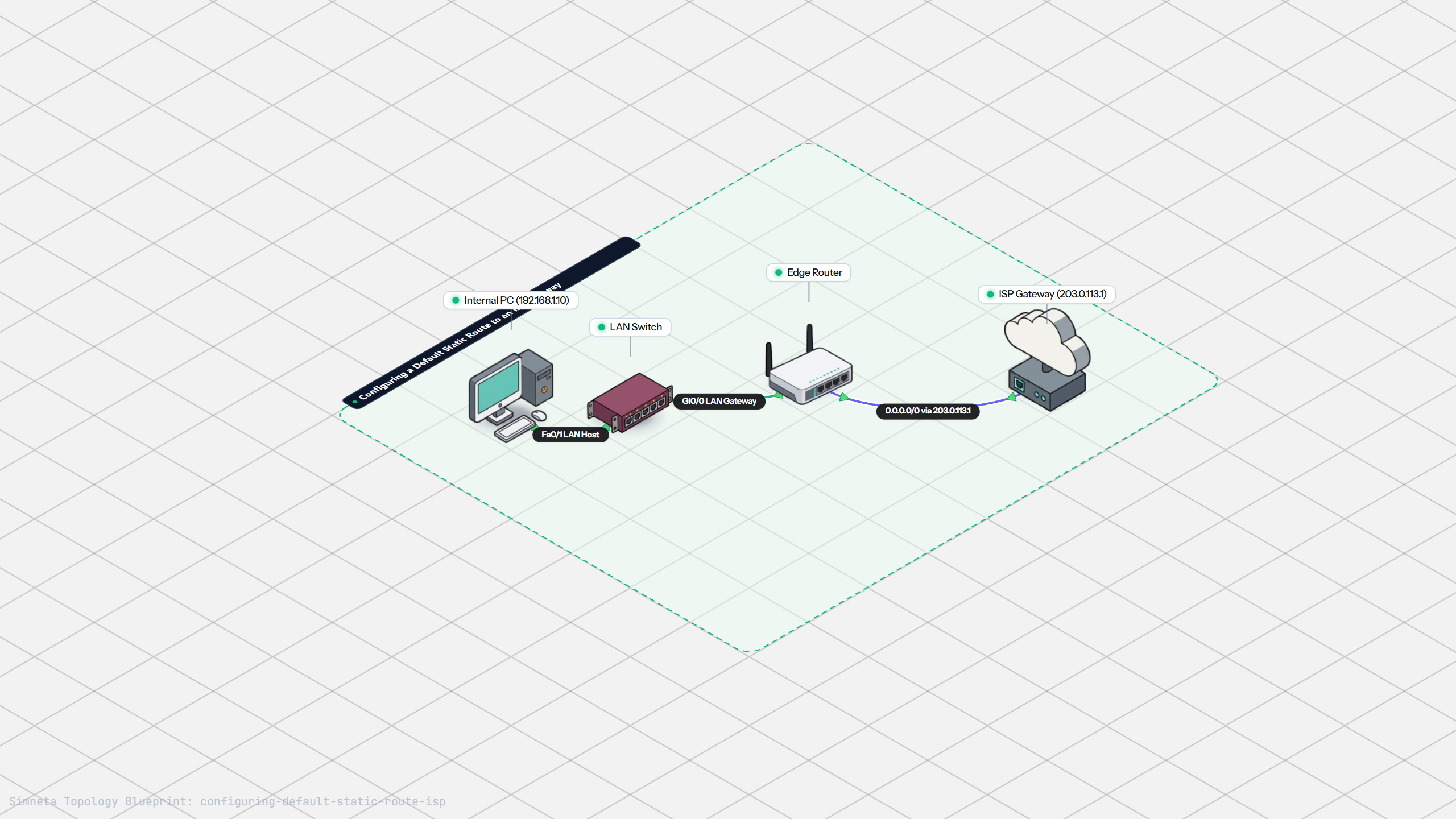
Configuring Default Static Route to ISP
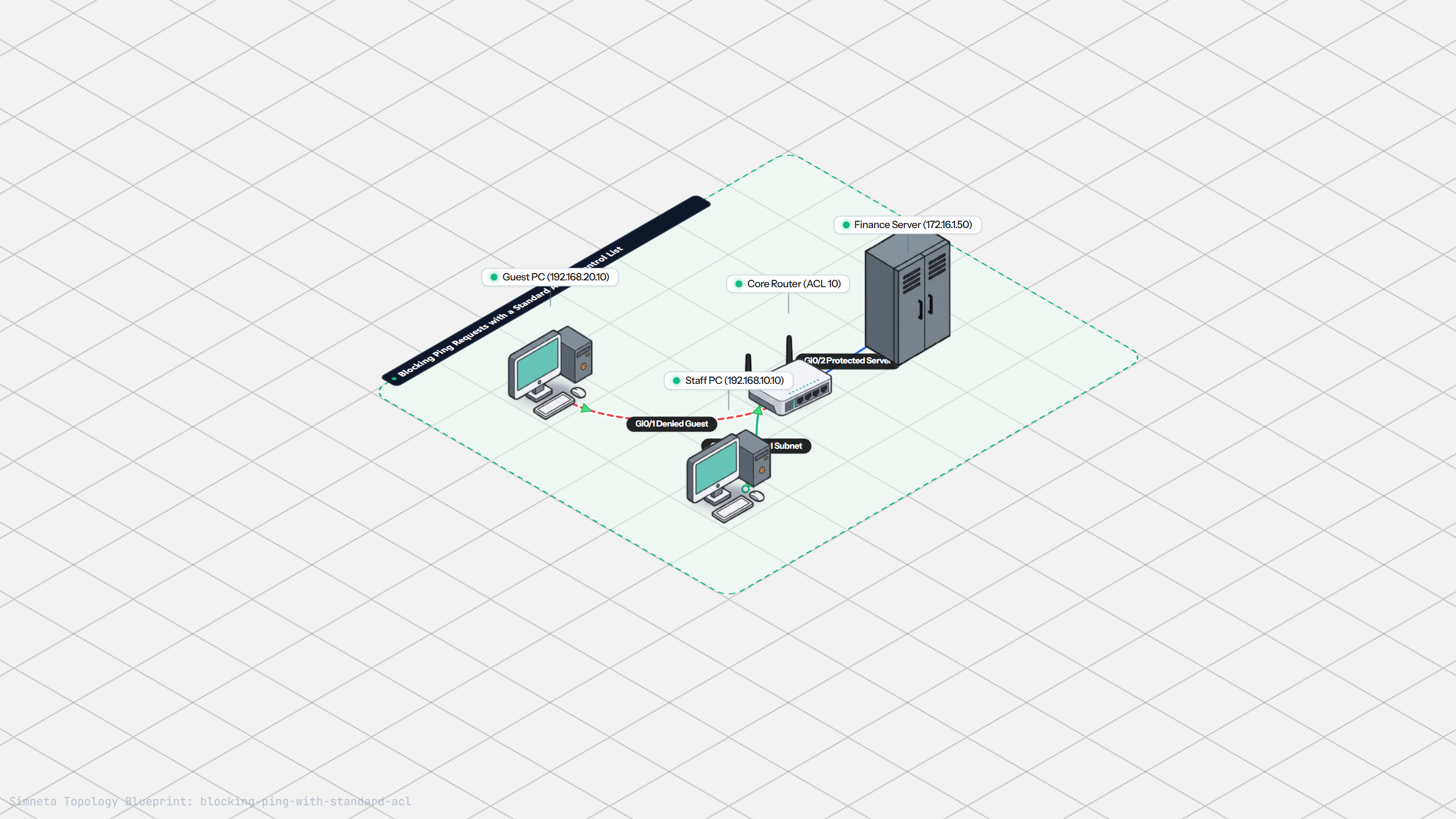
Blocking Ping with Standard ACL
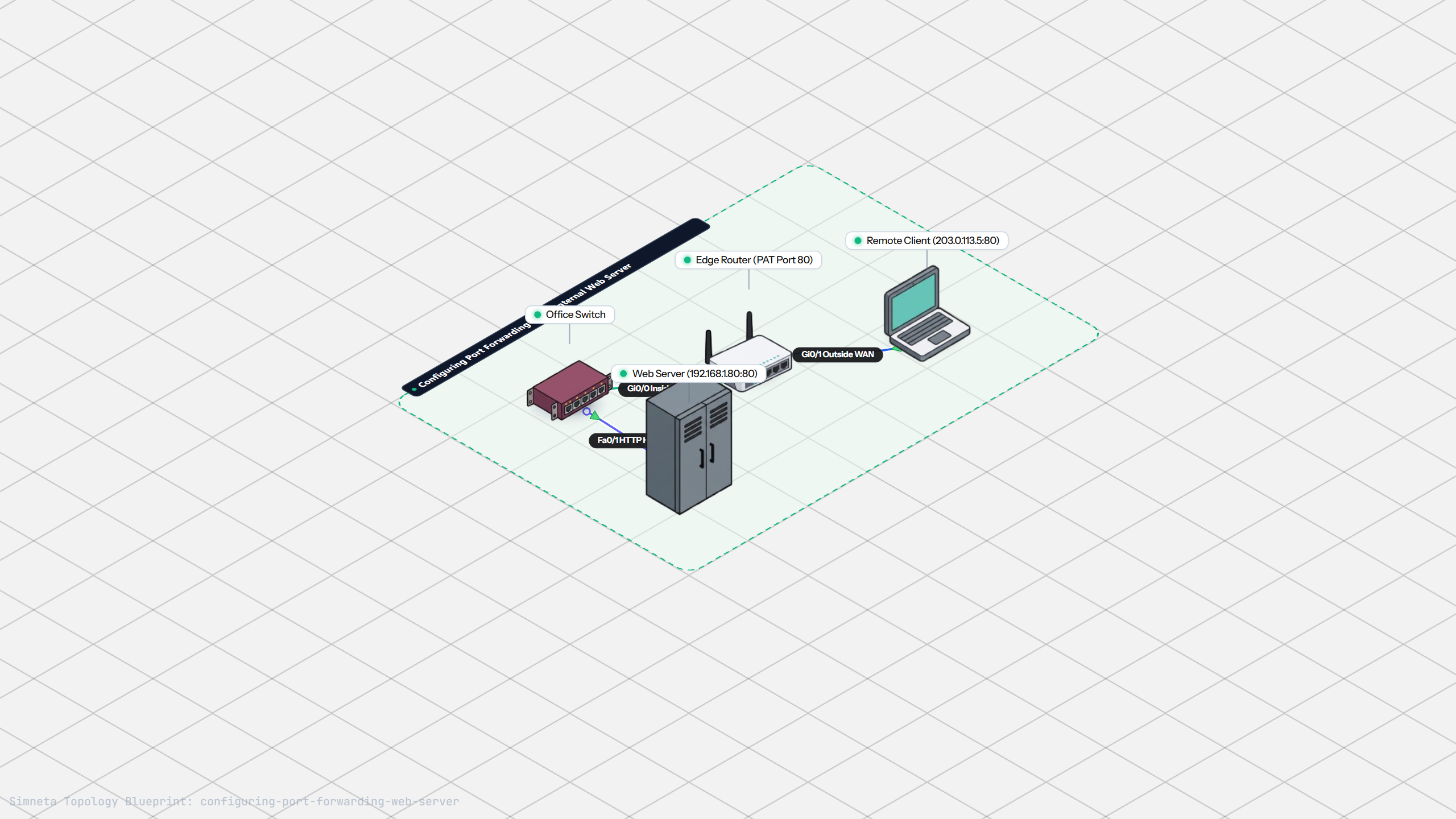
Port Forwarding for Web Servers
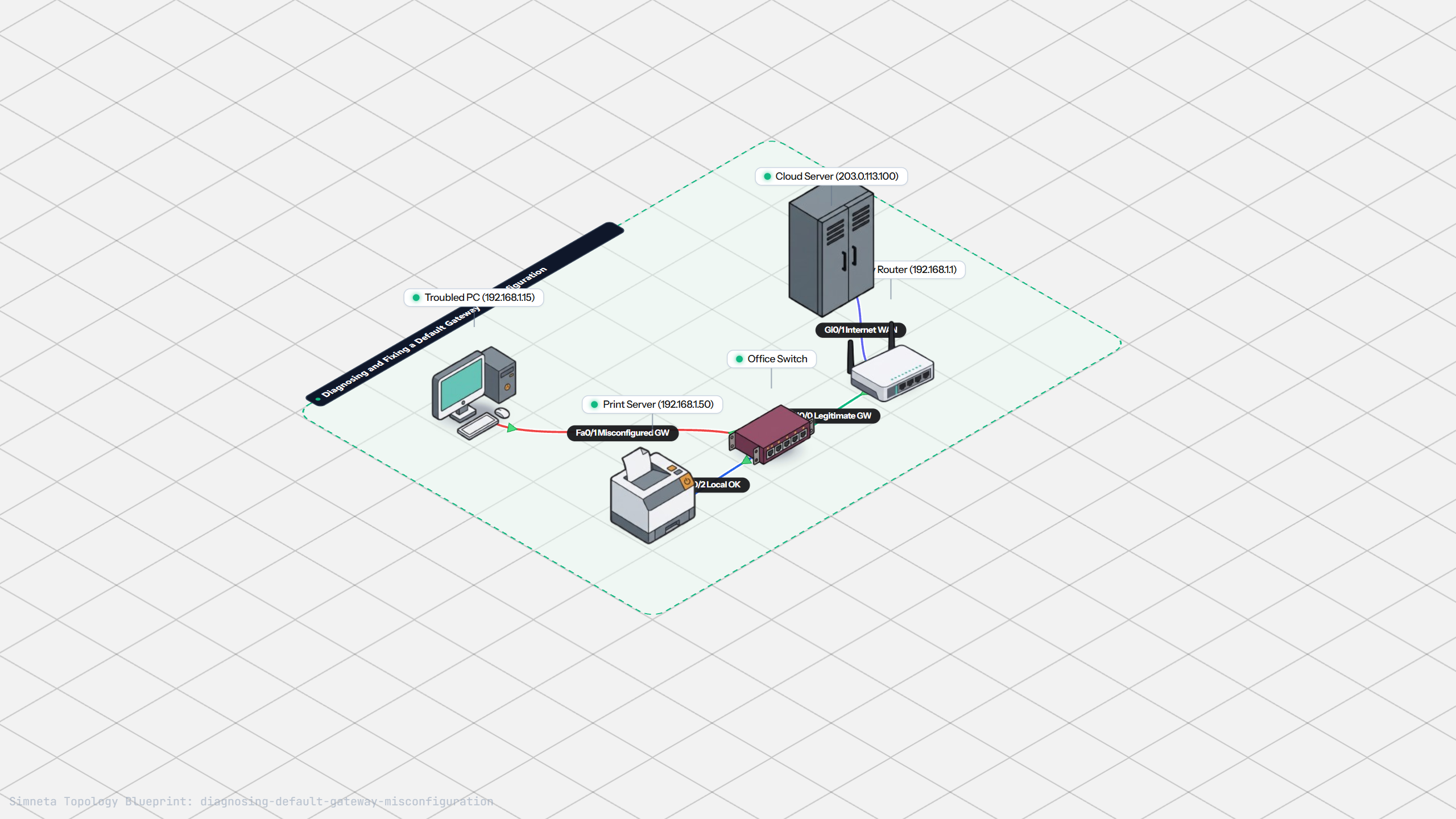
Fixing Default Gateway Misconfigurations
Discussion & Community Notes
Ask questions, share configuration tips, or discuss this laboratory topology.