
Resolving Domain Names with Local DNS
Stop memorizing complex numerical IP addresses. Deploy a dedicated local DNS server, configure custom A-records and CNAME aliases, and verify real-time name resolution using nslookup.
Computers, switches, and routers operate purely on binary numbers and hexadecimal addresses. Whenever you open a web browser and type `portal.corp` to check your employee schedule or submit project code, the underlying network protocols have no idea what those letters mean. Before your computer can transmit a single HTTP request packet, it must first translate that human-friendly domain name into a numerical IP address like `192.168.1.100`.
This foundational translation service is handled by the Domain Name System (DNS)—frequently described as the global phonebook of computer networking. In home environments, devices usually rely on public resolvers like Google DNS (`8.8.8.8`) or Cloudflare (`1.1.1.1`). However, in enterprise environments, companies maintain their own private internal DNS servers so employees can access internal wikis, payroll portals, and development environments using convenient domain names without exposing internal servers to the public web.
Operating a private DNS infrastructure requires examining UDP port 53 query mechanics, structuring address and alias records, configuring client operating system resolvers, and evaluating response headers with command-line diagnostic utilities.
Network Architecture Plan
| Segment | Interface | Subnet / Address | Functional Role |
|---|---|---|---|
| Corporate DNS Server | GigabitEthernet0 | 192.168.1.53/24 | Local authoritative DNS resolver listening on UDP Port 53 |
| Corporate Intranet Web Server | GigabitEthernet0 | 192.168.1.100/24 | Hosts company internal web application on HTTP Port 80 |
| Department Switch | FastEthernet0/1 - 0/4 | Layer 2 Switching | Connects all workstations and servers across local subnet |
| Employee Desktop PC | FastEthernet0 | 192.168.1.10/24 | Client computer querying domain names via DNS resolver 192.168.1.53 |
Transport Mechanics Port 53
Unlike web browsers that use heavy TCP three-way handshakes to establish reliable sessions, standard DNS queries use the lightweight User Datagram Protocol (UDP) on Port 53. Understanding this transport decision is fundamental to understanding network application performance.
A standard DNS query packet is compact, typically measuring under 100 bytes. If every domain name lookup required a full TCP connection handshake (SYN, SYN-ACK, ACK) followed by a teardown exchange (FIN, ACK), web browsing latency would increase significantly. With UDP, the client computer sends a single query packet asking for an IP address, and the DNS server returns a single reply packet containing the answer.
Because UDP is connectionless and does not guarantee packet delivery, the DNS client stub resolver manages reliability. If a packet drops on a congested link or noisy wireless connection, the client operating system retransmits the query after a short timeout interval.
DNS switches to TCP Port 53 under specific circumstances: when zone transfers (AXFR) synchronize complete database copies between primary and secondary servers, or when cryptographic DNSSEC extensions push response sizes beyond the classic 512-byte UDP buffer limit.
Real-world engineering tip: Standard DNS queries use lightweight UDP Port 53 to maximize speed, but automatically fall back to TCP Port 53 if response payloads exceed 512 bytes or when performing secondary zone transfers.
Configuring A And CNAME
To establish our local name resolution service, open the inspector for the Corporate DNS Server on the canvas and select the Services tab.
Ensure the DNS Service toggle is set to ON. The server maintains an internal lookup table composed of distinct resource record types that define how names map to network resources.
The two most common records in an enterprise environment are:
portal.corp to 192.168.1.100.wiki.corp to the canonical name portal.corp.Input these records into the server management interface to populate the authoritative zone table.
# Authoritative Forward Lookup Table
# Domain Name     Type    Target Value
portal.corp.      A       192.168.1.100
wiki.corp.        CNAME   portal.corp.
dns.corp.         A       192.168.1.53
Analyzing the resource record definitions in the lookup database:
portal.corp. A 192.168.1.100: Informs any requesting client that the web server hosting company services is reached at numerical IPv4 address 192.168.1.100.wiki.corp. CNAME portal.corp.: Acts as an alias pointer. When a workstation requests the address for wiki.corp, the DNS server resolves wiki.corp to portal.corp, which then resolves to 192.168.1.100.dns.corp. A 192.168.1.53: Provides a self-referencing address record for the DNS server host itself.Architecture tip: Use CNAME records for services that share a server host. When the server IP address changes in the future, updating the single master A-record automatically updates all pointing aliases.
Configuring Client DNS Resolver
A DNS server cannot assist a workstation until the workstation network settings explicitly designate that server as its primary resolver. Operating systems rely on a built-in software component called the stub resolver to initiate DNS queries.
Click on Employee Desktop PC to open its inspector panel and select the Config tab (or open Desktop → IP Configuration).
Verify that the static IP configuration is set to 192.168.1.10 with subnet mask 255.255.255.0. In the DNS Server field, enter 192.168.1.53 and click Save Configuration.
Without this explicit configuration pointer, the operating system would forward lookup queries to an external public resolver like `8.8.8.8` or drop the lookup entirely. Because external internet root and public DNS servers have no record of private `.corp` domains, they immediately return an NXDOMAIN (Non-Existent Domain) error.
Interface: FastEthernet0
IP Address: 192.168.1.10
Subnet Mask: 255.255.255.0
Default Gateway: 192.168.1.1
Primary DNS Server: 192.168.1.53
Examining client resolver configuration fields:
Primary DNS Server: 192.168.1.53: Directs all system-level hostname lookup requests to our local DNS server over UDP port 53.Troubleshooting insight: When internal websites fail to resolve, always check the client resolver settings first. If the workstation points to a public resolver like 8.8.8.8, it will receive an NXDOMAIN error for all internal private corporate names.
Analyzing Nslookup Query Output
Now verify that name resolution works properly from the client workstation command line. Select the Terminal tab on the Employee Desktop PC.
The primary diagnostic utility for querying DNS servers is nslookup (Name Server Lookup). It sends a direct UDP port 53 query to the configured resolver and prints the raw server reply.
Run nslookup portal.corp followed by nslookup wiki.corp in the terminal to inspect how the server answers queries for both A-records and CNAME aliases.
Examining the returned terminal output fields:
Server: 192.168.1.53: Identifies the IP address of the DNS resolver that answered the query, confirming that our local server responded.Address: 192.168.1.53#53: Shows the server socket address, combining the IPv4 address with destination UDP port 53.Name: portal.corp and Address: 192.168.1.100: Confirms that the authoritative A-record was matched and returned the target web server IPv4 address.wiki.corp canonical name = portal.corp.: Demonstrates how the DNS server processed the CNAME alias. The server identified the canonical name, queried that name internally, and returned the underlying IP address in a single unified response.Diagnostic command tip: The nslookup tool queries DNS servers directly, bypassing local hosts files and operating system web caches. This makes it the cleanest tool for verifying DNS server health.
Testing Browser Name Resolution
Now verify end-to-end connectivity using real application protocols. In the workstation inspector, open the Desktop tab and click the Web Browser application icon.
Enter http://portal.corp in the address bar and press Enter. The web browser displays the Corporate Intranet Portal.
Observe the packet exchange sequence that occurred in under two milliseconds:
Finally, test the CNAME alias from the command line using curl http://wiki.corp to ensure name resolution functions seamlessly across all command-line and graphical tools.
Analyzing the application layer responses:
HTTP/1.1 200 OK with identical HTML portal content.Performance best practice: Client operating systems cache successful DNS lookups in local memory. If you update an A-record, flush the client resolver cache using "ipconfig /flushdns" so the computer immediately queries the updated record.
Related Network Labs
Continue your network simulation practice with these recommended labs.
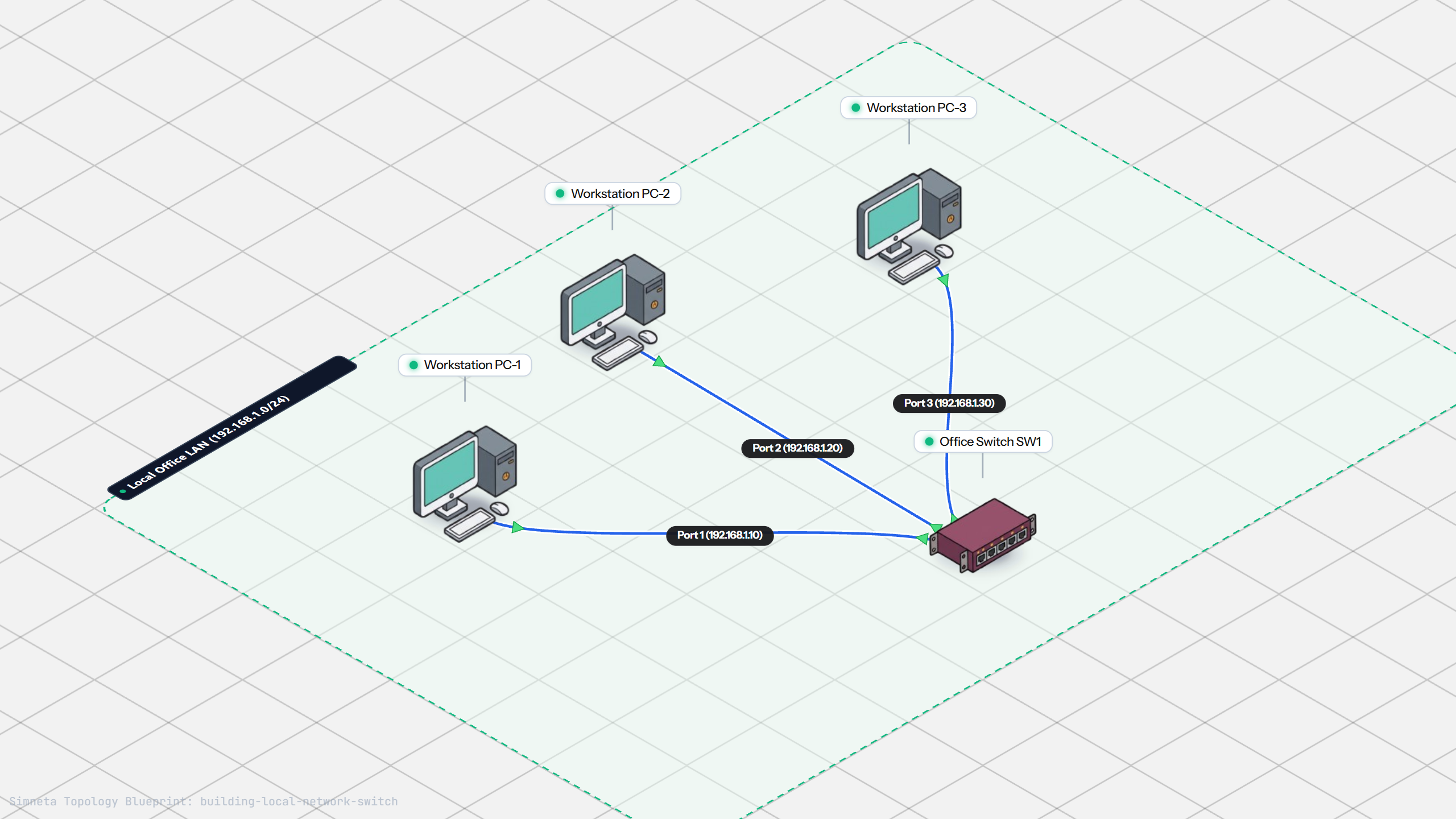
Building a Local Office LAN with a Switch
Setting Up a Local Web Server
VLAN Trunking with 802.1Q
Preventing Loops with Spanning Tree
Securing Switch Ports with Port Security
Bundling Switch Uplinks with LACP EtherChannel
Inter-VLAN Routing with Router-on-a-Stick
Dynamic Routing with Single-Area OSPF
Gateway Redundancy with HSRP Failover
Filtering Traffic with Extended ACLs
Connecting LAN to Internet with NAT
Stopping Rogue DHCP with Snooping
Connecting Two Switches with an Access Uplink
Configuring Static IP on Workstation
Testing Reachability and Latency with Ping
Inspecting ARP Cache Tables
Setting Up DHCP Static Reservations
Connecting Routers with /30 Subnet
Configuring Default Static Route to ISP
Blocking Ping with Standard ACL
Port Forwarding for Web Servers
Fixing Default Gateway Misconfigurations
Discussion & Community Notes
Ask questions, share configuration tips, or discuss this laboratory topology.