
Inter-VLAN Routing with Router-on-a-Stick
Learn how to route traffic between isolated VLANs using a single physical cable. Configure 802.1Q trunking on a Layer 2 switch and create virtual sub-interfaces on a Cisco router to enable smooth Inter-VLAN routing.
In enterprise network design, separating departments like Sales (VLAN 10) and Engineering (VLAN 20) on a Layer 2 switch is a fundamental security best practice. It confines noisy broadcast frames to their own segment and stops curious employees from browsing confidential servers. However, departments cannot operate in total isolation forever—engineers occasionally need to transfer project deliverables or submit expense reports to the Sales accounting software.
Because switches operate strictly at Layer 2, they cannot inspect IP headers or move packets across VLAN boundaries on their own. Running individual physical cables from the router to each separate VLAN port works in small prototypes, but it rapidly exhausts valuable router interfaces and clutters server racks with expensive copper runs.
The industry standard design is Router-on-a-Stick (ROAS). By connecting a single gigabit Ethernet cable between the switch and router and carving that single physical connection into multiple virtual sub-interfaces using 802.1Q encapsulation, you achieve secure Layer 3 routing between all internal departments.
Implementing router-on-a-stick requires establishing an 802.1Q trunk between switch and router, dividing the physical interface into dedicated logical sub-interfaces, and routing packets between subnets across the same physical link.
Network Architecture Plan
| Segment | Interface | Subnet / Address | Functional Role |
|---|---|---|---|
| Core Router Physical | GigabitEthernet0/0/0 | Unnumbered Link | Physical carrier link connecting switch trunk |
| Sales Sub-interface | GigabitEthernet0/0/0.10 | 192.168.10.1/24 | Default Gateway for Sales Department (VLAN 10) |
| Engineering Sub-interface | GigabitEthernet0/0/0.20 | 192.168.20.1/24 | Default Gateway for Engineering Department (VLAN 20) |
| Switch Uplink Trunk | FastEthernet0/24 | 802.1Q Trunk | Carries tagged frames from all local VLANs to router |
| Sales Workstation | FastEthernet0 | 192.168.10.10/24 | Sales endpoint (Default Gateway: 192.168.10.1) |
| Engineer Workstation | FastEthernet0 | 192.168.20.10/24 | Engineering endpoint (Default Gateway: 192.168.20.1) |
Isolating Switch Broadcast Domains
Before establishing inter-VLAN routing, configure the access ports on your Layer 2 switch. Create VLAN 10 for Sales and VLAN 20 for Engineering.
Assign switch port FastEthernet0/1 to VLAN 10 and port FastEthernet0/2 to VLAN 20. When an access port receives an untagged frame from a workstation, the switch inserts an internal VLAN tag and keeps that frame strictly inside that broadcast domain.
If you attempt to ping the Engineer Workstation (192.168.20.10) from the Sales Workstation (192.168.10.10) right now, the ping fails immediately. The switch refuses to forward frames across VLAN boundaries because it lacks a Layer 3 routing engine.
To allow communication, frames must exit the switch, travel to an upstream router to cross the subnet boundary, and return back down to the destination VLAN.
Switch# configure terminal
# Step 1: Create departmental VLANs
Switch(config)# vlan 10
Switch(config-vlan)# name Sales
Switch(config-vlan)# exit
Switch(config)# vlan 20
Switch(config-vlan)# name Engineering
Switch(config-vlan)# exit

# Step 2: Assign access ports
Switch(config)# interface FastEthernet0/1
Switch(config-if)# switchport mode access
Switch(config-if)# switchport access vlan 10
Switch(config-if)# exit

Switch(config)# interface FastEthernet0/2
Switch(config-if)# switchport mode access
Switch(config-if)# switchport access vlan 20
Switch(config-if)# exit
Understanding Broadcast Domain Isolation:
vlan 10 / vlan 20: Creates distinct Layer 2 broadcast domains inside the switch CAM memory.switchport access vlan X: Strips all 802.1Q tags when delivering frames to client workstations, ensuring standard end-user PCs receive untagged Ethernet frames.Access Port Security: Always configure switchport mode access explicitly on end-user ports. Leaving ports in default dynamic mode allows attackers to negotiate trunks and hop into unauthorized VLANs.
Building the 802.1Q Trunk
To carry traffic from multiple VLANs over a single cable up to the router, configure the switch uplink port FastEthernet0/24 as an 802.1Q trunk link.
When a frame departs an access port and enters a trunk link, the switch inserts a 4-byte 802.1Q header into the Ethernet frame. This header contains a 12-bit VLAN Identifier (VLAN ID) that tells the receiving router exactly which subnet the packet originated from.
Connect port FastEthernet0/24 on the switch to port GigabitEthernet0/0/0 on the Cisco router using a standard Cat6 copper cable.
On the switch interface CLI, execute switchport mode trunk and enable the link with no shutdown.
Switch# configure terminal
Switch(config)# interface FastEthernet0/24
Switch(config-if)# description Uplink-to-Router-ROAS
Switch(config-if)# switchport mode trunk
Switch(config-if)# switchport trunk allowed vlan 10,20
Switch(config-if)# no shutdown
Switch(config-if)# exit
Inside the 4-Byte 802.1Q Tag:
TPID (0x8100): Tag Protocol Identifier confirming this is an IEEE 802.1Q tagged frame.Priority (PCP): 3 bits used for Class of Service (CoS) quality of service prioritization.VLAN ID (VID): 12 bits identifying the specific VLAN number (values 1 through 4094).switchport trunk allowed vlan 10,20: Restricts trunk traffic to only our active departments, preventing unnecessary broadcast leakage from other internal networks.Real-world field story: A junior engineer configured IP addresses on sub-interfaces but forgot the encapsulation dot1Q command. The router received tagged frames from the switch trunk, had no idea which sub-interface owned them, and silently discarded every single inter-department packet.
Configuring Router Dot1Q Subinterfaces
On the Cisco router, the physical interface GigabitEthernet0/0/0 does not receive an IP address. Instead, you enable the physical carrier port using no shutdown, and then create logical sub-interfaces by appending a dot and a number, such as interface GigabitEthernet0/0/0.10.
Each sub-interface requires a strict sequence of configuration commands:
interface GigabitEthernet0/0/0.10: The number .10 is arbitrary, but engineering best practice dictates matching the VLAN ID for clarity.encapsulation dot1Q 10: This is mandatory before assigning an IP. It binds the virtual sub-interface to 802.1Q tag 10. If you try to type ip address first, Cisco IOS will reject the command with an error.ip address 192.168.10.1 255.255.255.0: This assigns the default gateway IP address for all workstations in VLAN 10.Repeat the exact same sequence for sub-interface .20 with encapsulation dot1Q 20 and IP 192.168.20.1/24.
Router# configure terminal
# Step 1: Bring up the physical carrier port (no IP assigned)
Router(config)# interface GigabitEthernet0/0/0
Router(config-if)# no shutdown
Router(config-if)# exit

# Step 2: Sub-interface for VLAN 10 (Sales Gateway)
Router(config)# interface GigabitEthernet0/0/0.10
Router(config-subif)# encapsulation dot1Q 10
Router(config-subif)# ip address 192.168.10.1 255.255.255.0
Router(config-subif)# exit

# Step 3: Sub-interface for VLAN 20 (Engineering Gateway)
Router(config)# interface GigabitEthernet0/0/0.20
Router(config-subif)# encapsulation dot1Q 20
Router(config-subif)# ip address 192.168.20.1 255.255.255.0
Router(config-subif)# exit
Understanding Sub-Interface Binding Mechanics:
Gi0/0/0) must be powered on with no shutdown. If the parent port is administratively down, all sub-interfaces collapse automatically regardless of their individual states.encapsulation dot1Q <vlan> before the system permits an ip address command on a sub-interface.192.168.10.1, while Engineering points to 192.168.20.1.Sub-Interface Numbering Tip: Although Cisco IOS allows naming subinterfaces arbitrarily (e.g. Gi0/0/0.999 for VLAN 10), always match the subinterface number to the VLAN ID (Gi0/0/0.10 for VLAN 10) to prevent operational confusion.
Verifying Connected Routing Tables
Open the CLI console on the Cisco router and run show ip route connected to examine the sub-interface bindings in the routing table:
Observe how the router operating system registers each departmental subnet as directly attached to its corresponding logical sub-interface.
Routing Table Output Breakdown:
192.168.10.0/24 maps to Gi0/0/0.10, and 192.168.20.0/24 maps to Gi0/0/0.20./32 host routes representing the router own gateway IP addresses on each sub-interface.Interface Status Prerequisite: If show ip route does not list your subinterfaces, check show ip interface brief. Subinterfaces remain down until the parent physical interface achieves an up/up operational state.
Tracing Inter-VLAN Packet Traversal
Open the CLI terminal on the Sales Workstation (192.168.10.10) and send an ICMP ping to the Engineer Workstation at 192.168.20.10 to test inter-VLAN routing:
Watch the packet travel up the trunk cable to the router and return down the same physical cable into the destination VLAN.
Tracing the Complete Inter-VLAN Packet Journey:
192.168.20.10 is outside its local /24 subnet, it forwards the packet to default gateway 192.168.10.1.VLAN ID: 10.Gi0/0/0.10. The router strips the 802.1Q header, decrements the TTL from 64 to 63, and inspects its routing table for 192.168.20.10.Gi0/0/0.20. The router encapsulates the packet with a new 802.1Q header containing VLAN ID: 20 and transmits it back down the exact same cable.The 0% packet loss and steady 0.7ms latency prove that inter-VLAN routing is fully operational.
Bandwidth Consideration: In high-traffic corporate data centers, sending traffic up and down a single cable (the stick) can create bottlenecks. Modern enterprise networks migrate high-volume Inter-VLAN routing to Layer 3 Multilayer Switches using Switched Virtual Interfaces (SVIs).

Related Network Labs
Continue your network simulation practice with these recommended labs.
Building a Local Office LAN with a Switch
Setting Up a Local Web Server
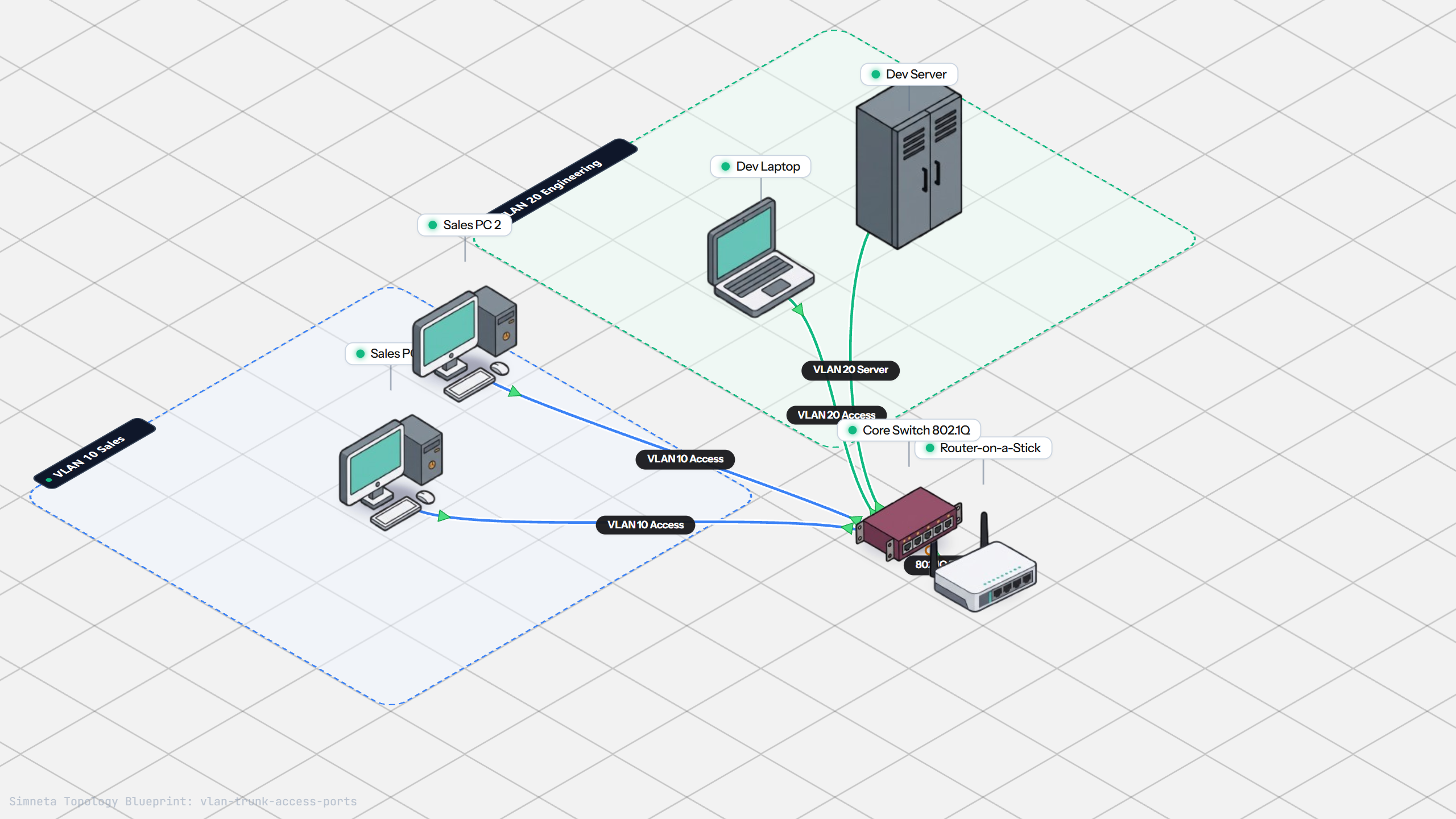
VLAN Trunking with 802.1Q
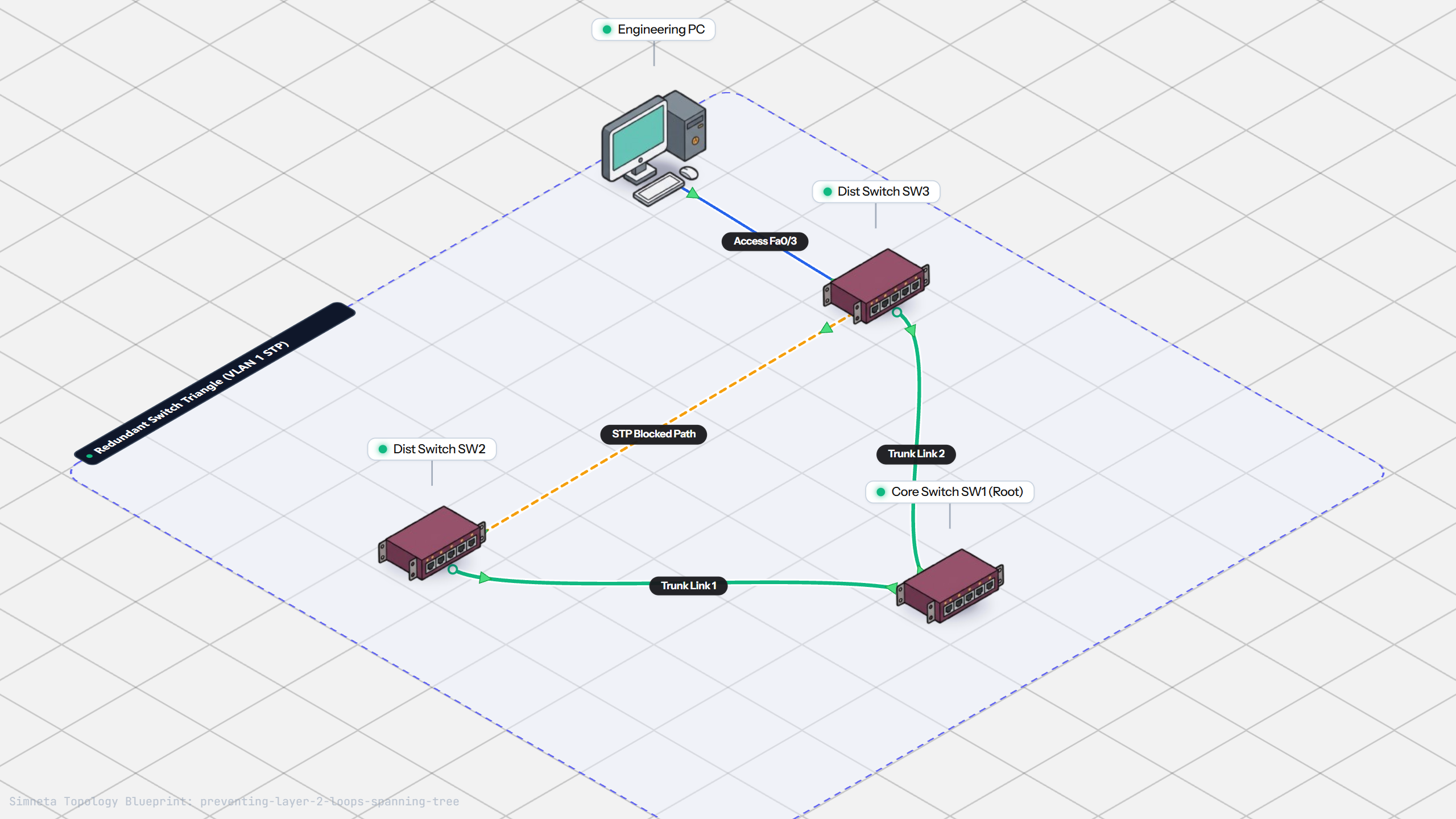
Preventing Loops with Spanning Tree
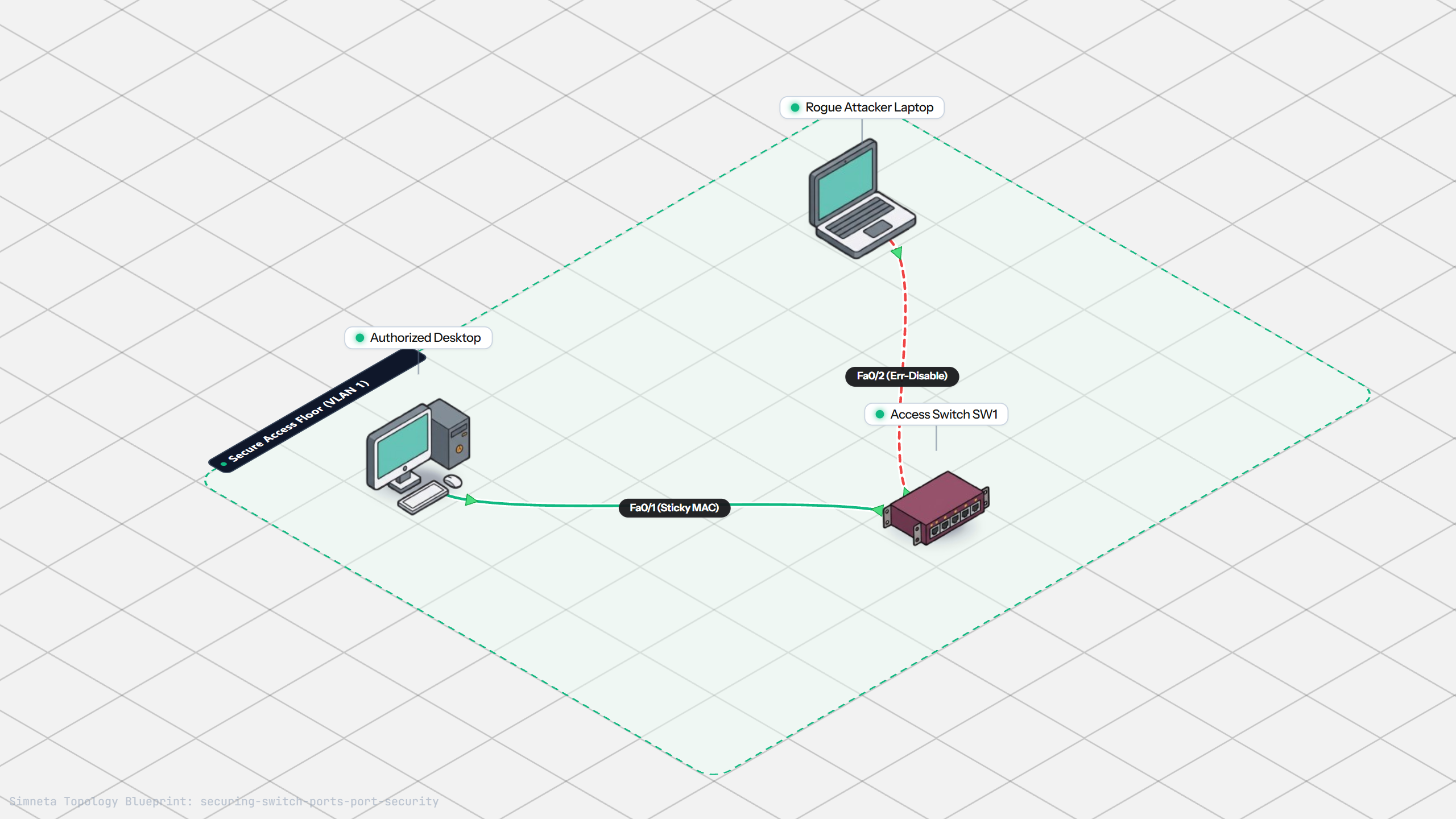
Securing Switch Ports with Port Security
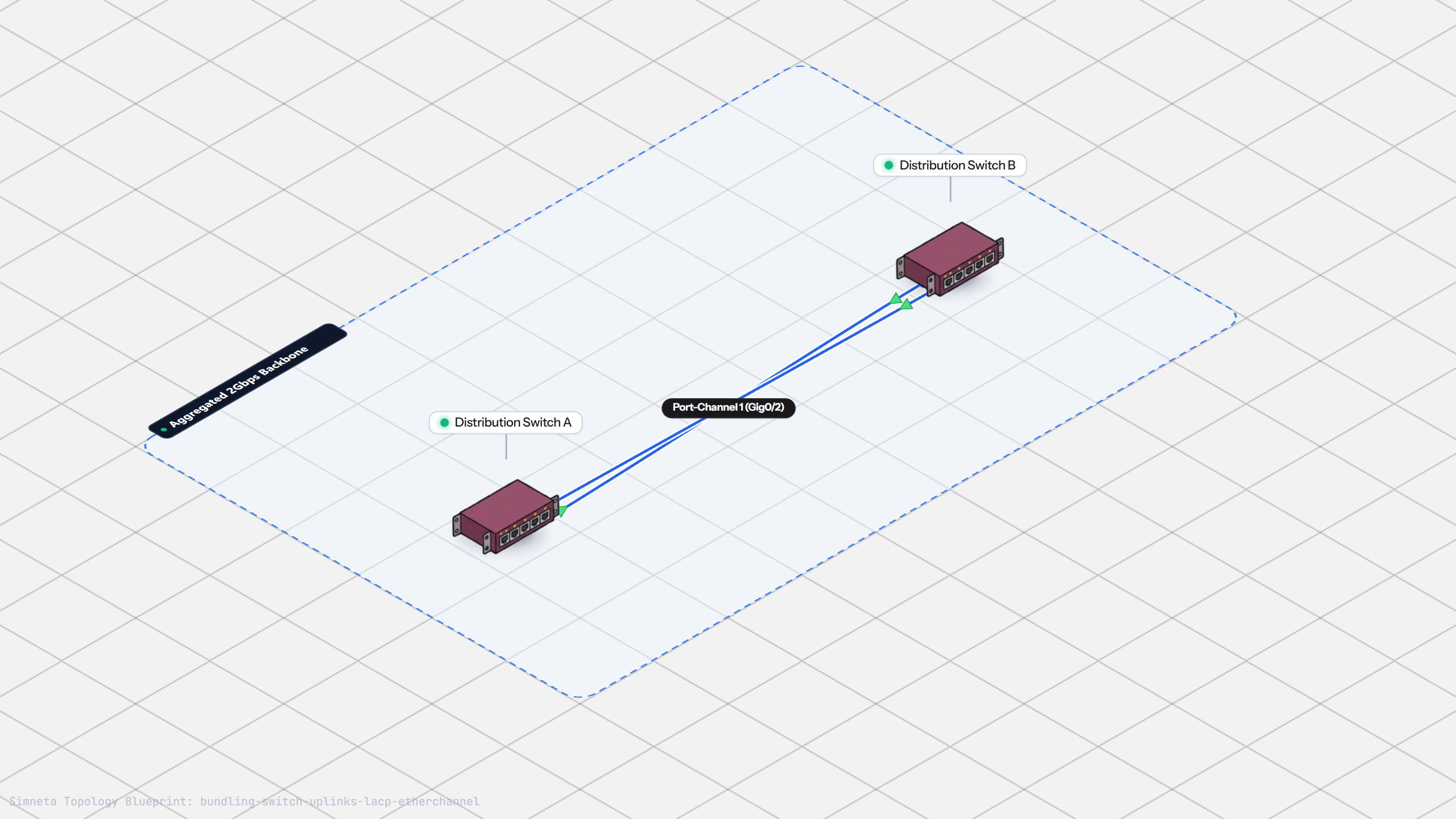
Bundling Switch Uplinks with LACP EtherChannel
Dynamic Routing with Single-Area OSPF
Gateway Redundancy with HSRP Failover
Filtering Traffic with Extended ACLs
Connecting LAN to Internet with NAT
Resolving Domain Names with Local DNS
Stopping Rogue DHCP with Snooping
Connecting Two Switches with an Access Uplink
Configuring Static IP on Workstation
Testing Reachability and Latency with Ping
Inspecting ARP Cache Tables
Setting Up DHCP Static Reservations
Connecting Routers with /30 Subnet
Configuring Default Static Route to ISP
Blocking Ping with Standard ACL
Port Forwarding for Web Servers
Fixing Default Gateway Misconfigurations
Discussion & Community Notes
Ask questions, share configuration tips, or discuss this laboratory topology.