
Connecting Two Switches with an Access Uplink
Expand office networks by cascading two access switches with a straight-through copper uplink cable. Discover how MAC address tables propagate frames across switch boundaries while keeping local host communication transparent.
When a growing business expands into an adjacent office suite or hires new team members, the ports on the primary network switch quickly fill up. Rather than pulling dozens of individual Ethernet cables through walls back to the main server closet, network administrators install a second switch in the new room and connect the two devices using a single inter-switch uplink cable.
Cascading two switches allows computers on both sides to share resources as part of a single unified broadcast domain. In this hands-on lab, you will connect two Layer 2 switches together, configure IP addresses on workstations across both rooms, and observe how switches forward Ethernet frames across the uplink without requiring a router.
Unlike legacy repeating hubs that shared a single collision domain, modern Ethernet switches give each individual physical port its own dedicated collision domain. When you link two switches with an uplink, you extend the broadcast domain across both units while keeping full-duplex transmission isolated and collision-free on every port.
Under the hood, switches learn MAC addresses dynamically by reading incoming frame headers. You will inspect the MAC address tables on both switches to see how each device registers remote computers behind the uplink port.
Network Architecture Plan
| Segment | Interface | Subnet / Address | Functional Role |
|---|---|---|---|
| Floor 1 Switch SW1 | Fa0/1 - Fa0/4, Fa0/24 | 192.168.1.0/24 | Primary Access Switch |
| Floor 2 Switch SW2 | Fa0/1 - Fa0/4, Fa0/24 | 192.168.1.0/24 | Secondary Extension Switch |
| Inter-Switch Uplink | SW1 Fa0/24 to SW2 Fa0/24 | Layer 2 Transparent | Cascaded Access Uplink Cable |
| Accounting PC | FastEthernet0 | 192.168.1.10/24 | Workstation on Switch 1 |
| Marketing PC | FastEthernet0 | 192.168.1.20/24 | Workstation on Switch 2 |
Why Cascading Switches Works
A single 24-port switch cannot support an entire growing company forever. When physical ports run out or when teams sit in separate rooms, installing a secondary switch is the most practical solution. The connection between two switches is known as an uplink.
Because both switches operate at Layer 2 without VLAN segregation, they form a single transparent bridging fabric. Neither computer knows that an extra switch exists between them. Data frames enter Switch 1, travel across the copper patch cable, and arrive at Switch 2 in microseconds.
This arrangement expands physical port density while preserving simple flat network addressing. All connected devices share the same IP subnet (192.168.1.0/24) and can communicate directly without default gateways or routing hops.
Broadcast traffic, such as Address Resolution Protocol requests and DHCP discovery messages, flows across the uplink so that all computers stay in the same logical neighborhood. This single broadcast domain design makes sharing printers, file servers, and local web applications completely effortless.
In small office environments, cascading switches creates an extended star topology.
However, network engineers avoid connecting switches in a closed ring without Spanning Tree Protocol, as loops cause broadcast storms that saturate network bandwidth within seconds.
Spanning Tree Protocol continuously exchanges Bridge Protocol Data Units to detect redundant paths. In our simple two-switch lab, a single point-to-point patch cable provides safe, loop-free expansion without blocking any ports.
Design Best Practice: Limit cascaded access switches to a maximum depth of two. Daisy-chaining three or more switches in a row creates bandwidth bottlenecks and single points of failure.
Connecting the Uplink Cable
To establish the physical connection, connect an Ethernet cable between port FastEthernet0/24 on Switch 1 and port FastEthernet0/24 on Switch 2.
Network administrators typically reserve the highest-numbered ports on a switch for uplinks to keep front patch panels organized.
Once connected, both port LEDs turn solid green. Modern network cards and switch ports feature Auto-MDIX, automatically swapping transmit and receive pairs in silicon so either straight-through or crossover cables work reliably.
During the initial link establishment, both switch ports exchange fast link pulses to negotiate operational parameters. Within milliseconds, both devices agree on 100 Mbps transmission speed and full-duplex operation.
SW1# show interfaces FastEthernet0/24 status
Port      Name               Status       Vlan       Duplex  Speed Type
Fa0/24    Uplink-to-SW2      connected    1          full    100M  100BaseTX

SW2# show interfaces FastEthernet0/24 status
Port      Name               Status       Vlan       Duplex  Speed Type
Fa0/24    Uplink-to-SW1      connected    1          full    100M  100BaseTX
Parameter-by-Parameter Status Breakdown:
Port Fa0/24: The physical port number handling inter-switch traffic.Status connected: Confirms physical electrical carrier signals are detected on both ends of the copper wire.Vlan 1: Indicates that both ports reside in the default access VLAN, ensuring untagged frame delivery between switches.Duplex full: Full-duplex mode enables simultaneous two-way transmission. Because transmit and receive pins use separate wire pairs, collisions cannot occur on this link.Speed 100M: Confirms the hardware successfully negotiated Fast Ethernet line speed (100 Mbps).Field Tip: When deploying uplinks in enterprise environments, always configure descriptions on uplink ports (e.g., description Uplink-to-SW2) so technicians can trace cables quickly during outages.
Assigning Workstation IP Addresses
Both rooms share the common network range 192.168.1.0/24. Before computers can generate network packets, they must have unique IP addresses within this range.
Open the console on the Accounting PC (connected to Switch 1 port Fa0/1) and assign IP address 192.168.1.10 with subnet mask 255.255.255.0.
Next, open the console on the Marketing PC (connected to Switch 2 port Fa0/1) and assign IP address 192.168.1.20 with the same subnet mask.
# Accounting PC on Switch 1
PC-Accounting> ip 192.168.1.10 255.255.255.0

# Marketing PC on Switch 2
PC-Marketing> ip 192.168.1.20 255.255.255.0
Understanding Local Delivery Logic:
When you assign 192.168.1.10/24, the workstation applies a bitwise AND operation between its IP address and subnet mask.
This calculation determines that its local network ID is 192.168.1.0. In a standard /24 subnet, 192.168.1.0 represents the network identifier, while 192.168.1.255 serves as the directed broadcast address. This leaves 254 valid host addresses from .1 through .254.
When Accounting PC attempts to send data to Marketing PC (192.168.1.20), it recognizes that the destination belongs to its own subnet.
Because the target is local, Accounting PC prepares a direct Layer 2 Ethernet frame rather than forwarding the packet to a default gateway router.
Subnet Consistency: Ensure every computer on the same physical switch fabric uses the exact same subnet mask. Mismatched masks cause one computer to believe the other is remote, breaking direct communication.
Verifying Cross-Switch Ping
Now test end-to-end connectivity across the physical uplink cable. Open the command terminal on Accounting PC and initiate an ICMP echo test: ping 192.168.1.20.
The first ping packet triggers an Address Resolution Protocol (ARP) broadcast. Watch how both switches cooperate to deliver the request across the uplink.
Tracing Frame Traversal Across the Uplink:
0050.7966.6801 | Dst MAC: FFFF.FFFF.FFFF].Notice the TTL value reports 64. In IP networking, routers decrement the TTL counter by 1 at every hop. Because switches operate at Layer 2 without altering IP headers, the TTL remains at 64.
Inspecting MAC Address Tables
To see the proof of transparent switching, open the console on Switch 1 and run the privileged EXEC command show mac address-table.
Observe how Switch 1 associates the remote Marketing PC hardware address with its local uplink port.
This lookup process takes place entirely in specialized silicon hardware known as Content Addressable Memory (CAM), ensuring that forwarding decisions occur at wire speed without straining the main CPU.
SW1# show mac address-table
          Mac Address Table
-------------------------------------------
Vlan    Mac Address       Type        Ports
----    -----------       --------    -----
1       0050.7966.6801    DYNAMIC     Fa0/1
1       0050.7966.6802    DYNAMIC     Fa0/24
Total Mac Addresses for this criterion: 2
Breaking Down the MAC Table Entries:
Vlan 1: The broadcast domain where the frame was learned.0050.7966.6801 on Fa0/1: Represents the local Accounting PC directly connected to port Fa0/1.0050.7966.6802 on Fa0/24: Represents the remote Marketing PC. Even though Marketing PC is plugged into Switch 2 across the room, Switch 1 knows that sending frames out of Fa0/24 will reach it.Type DYNAMIC: Indicates the entry was learned automatically by reading incoming Ethernet frames rather than configured by hand. Dynamic entries age out if a device remains quiet for 300 seconds.This demonstrates the core elegance of Ethernet switching: switches do not care whether a device is directly connected or multiple switches away. As long as an uplink exists, frames reach their destination transparently.
MAC Table Scaling: In enterprise networks with hundreds of computers, uplink ports learn dozens of MAC addresses simultaneously. Switches comfortably store thousands of dynamic MAC entries in high-speed CAM memory.

Related Network Labs
Continue your network simulation practice with these recommended labs.
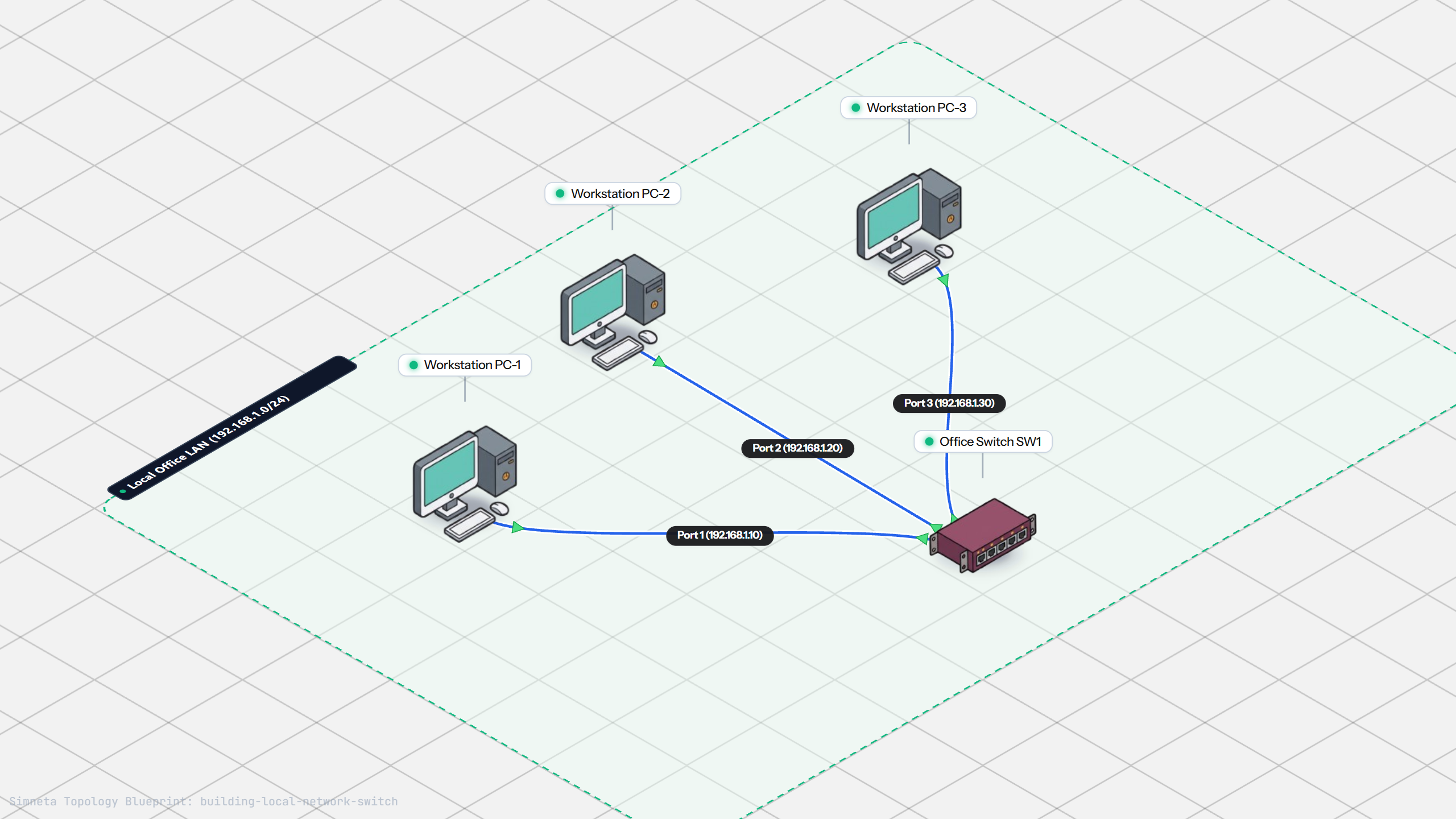
Building a Local Office LAN with a Switch
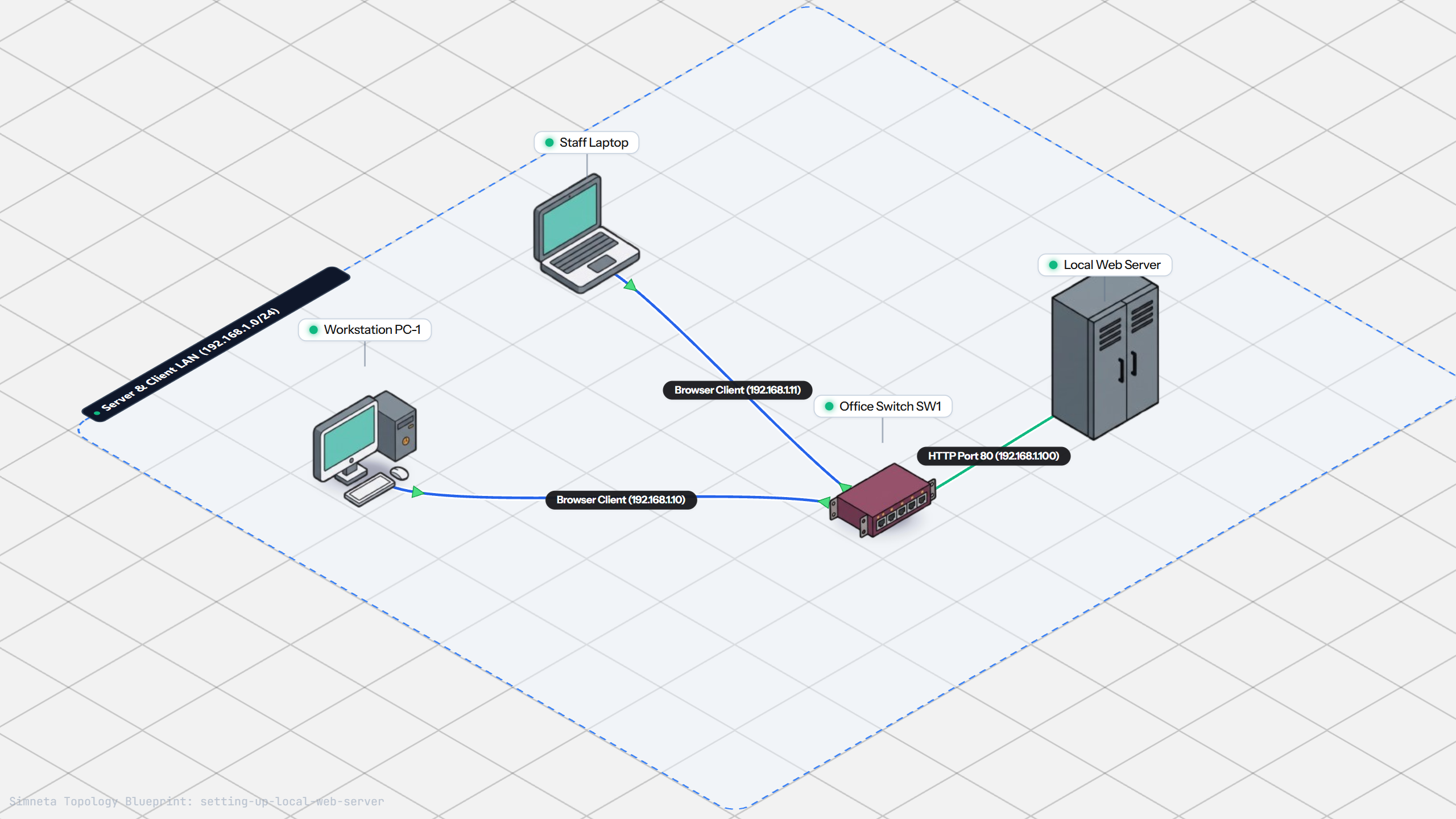
Setting Up a Local Web Server
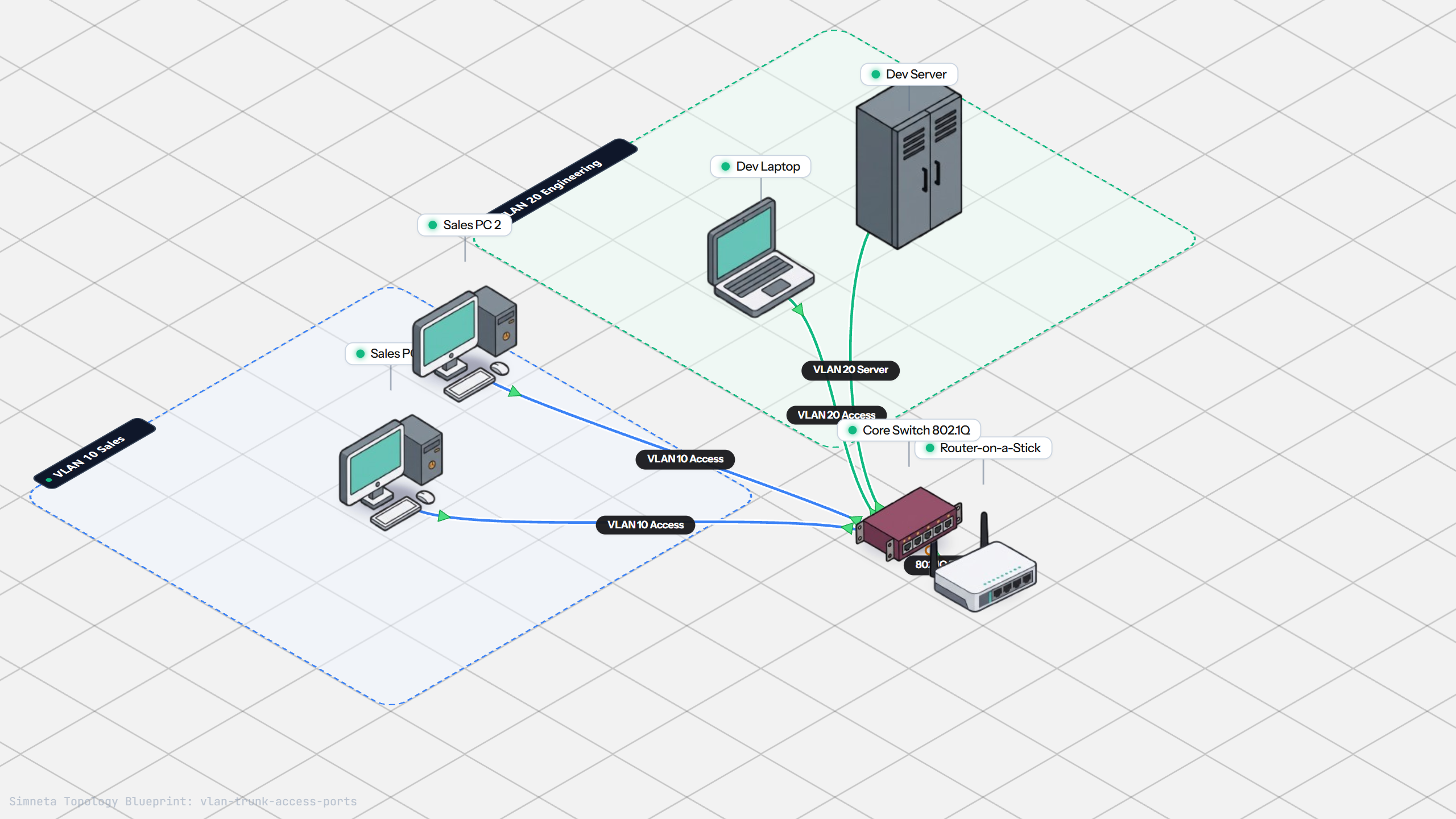
VLAN Trunking with 802.1Q
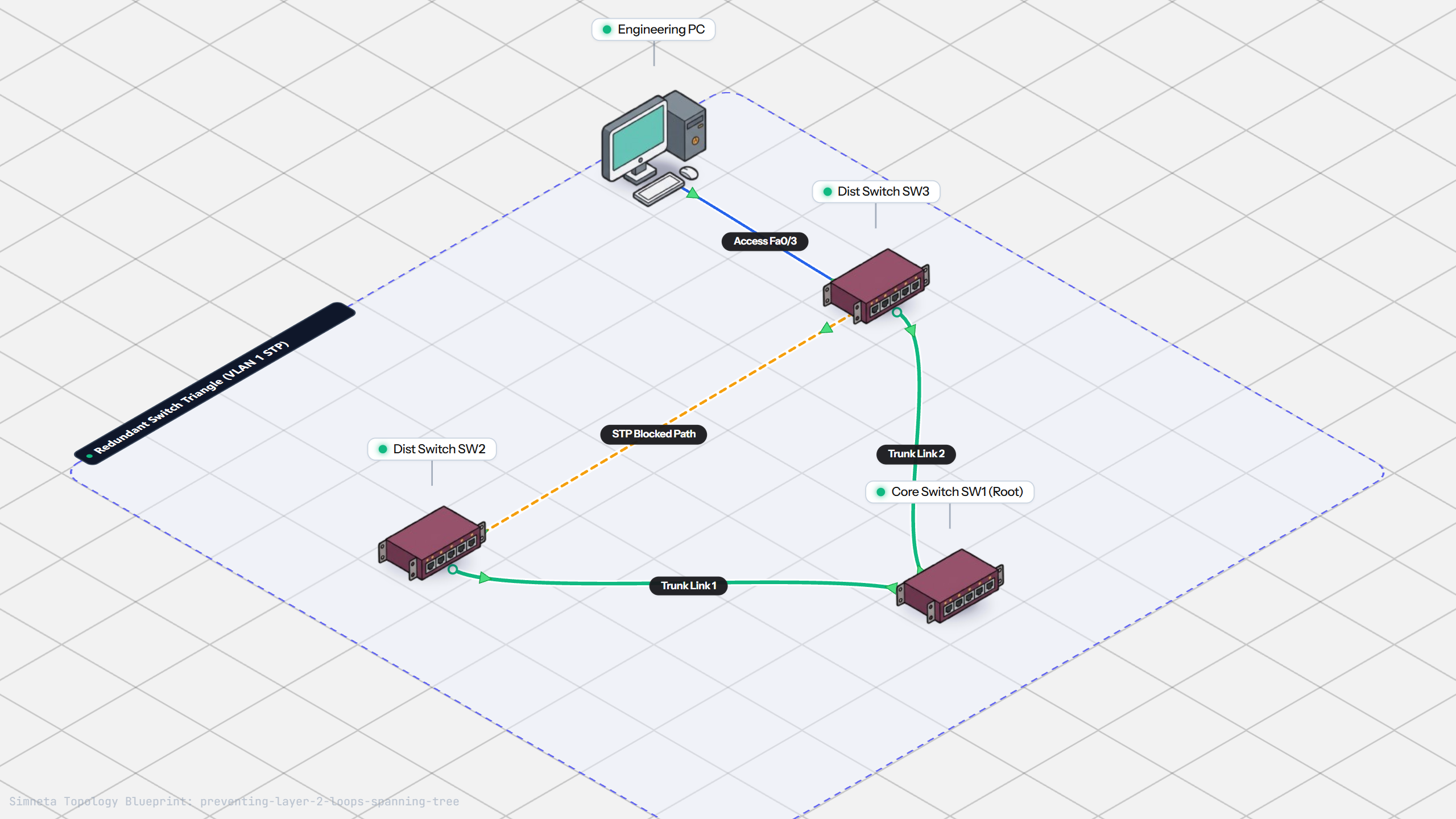
Preventing Loops with Spanning Tree
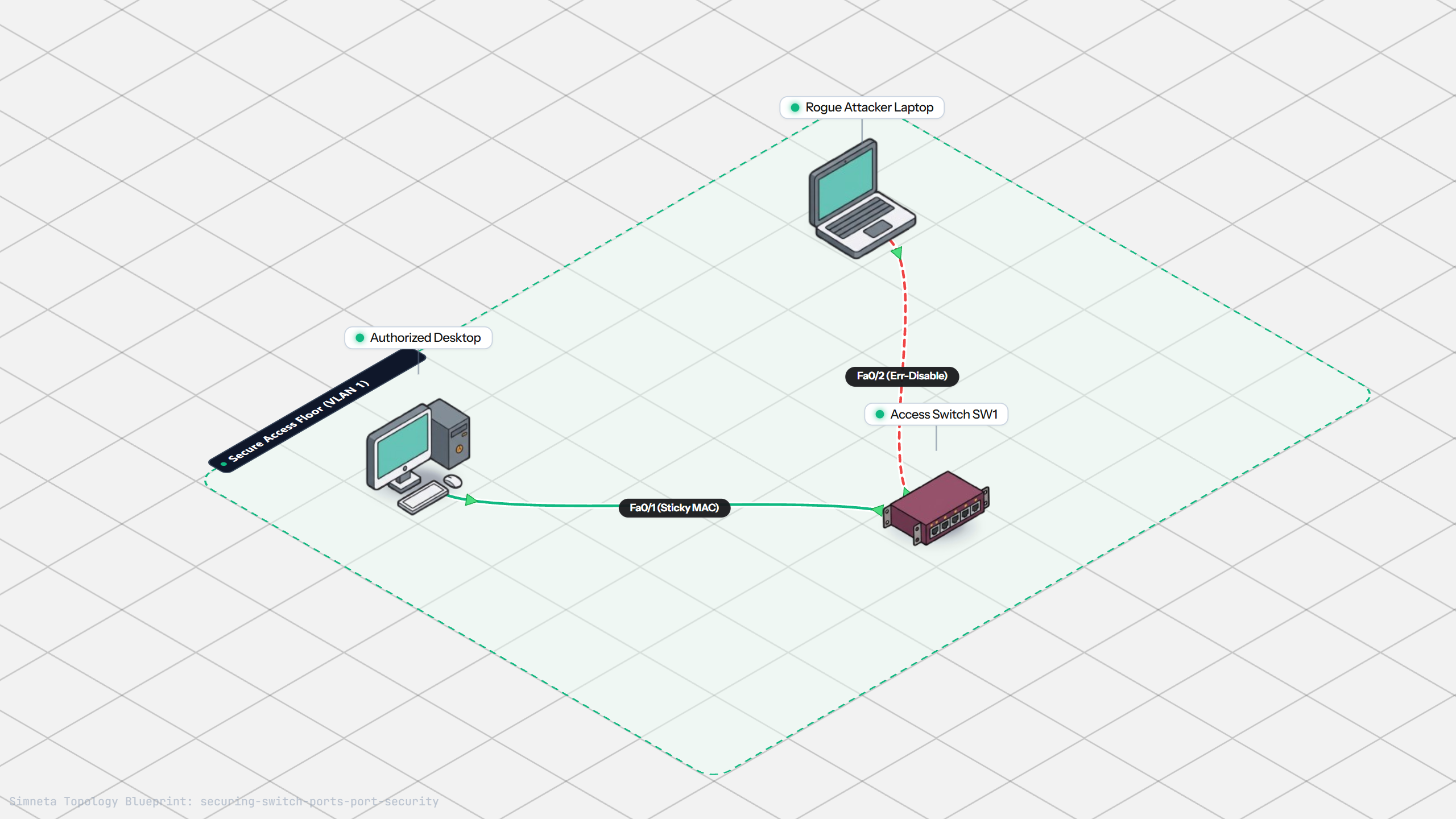
Securing Switch Ports with Port Security
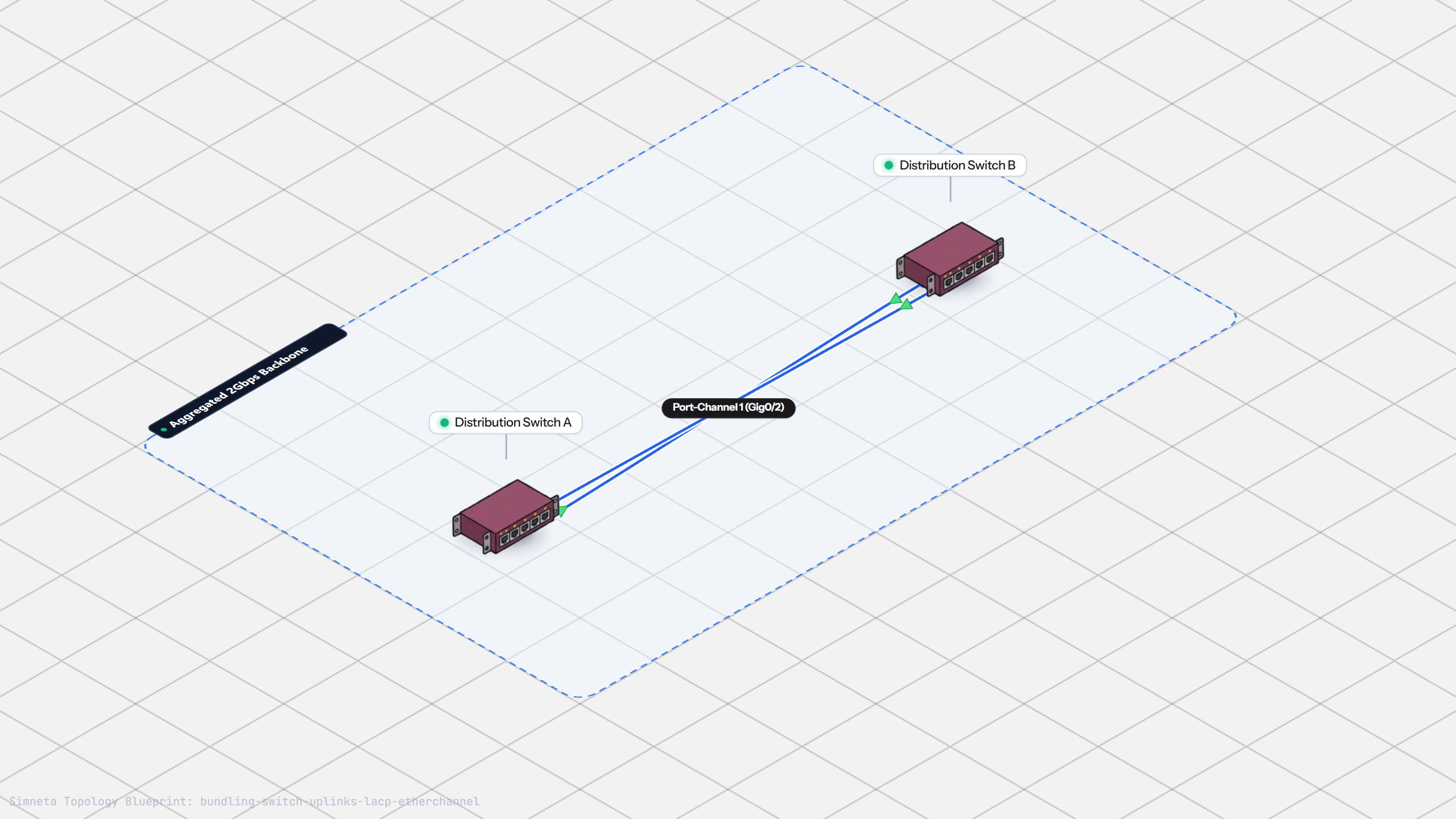
Bundling Switch Uplinks with LACP EtherChannel
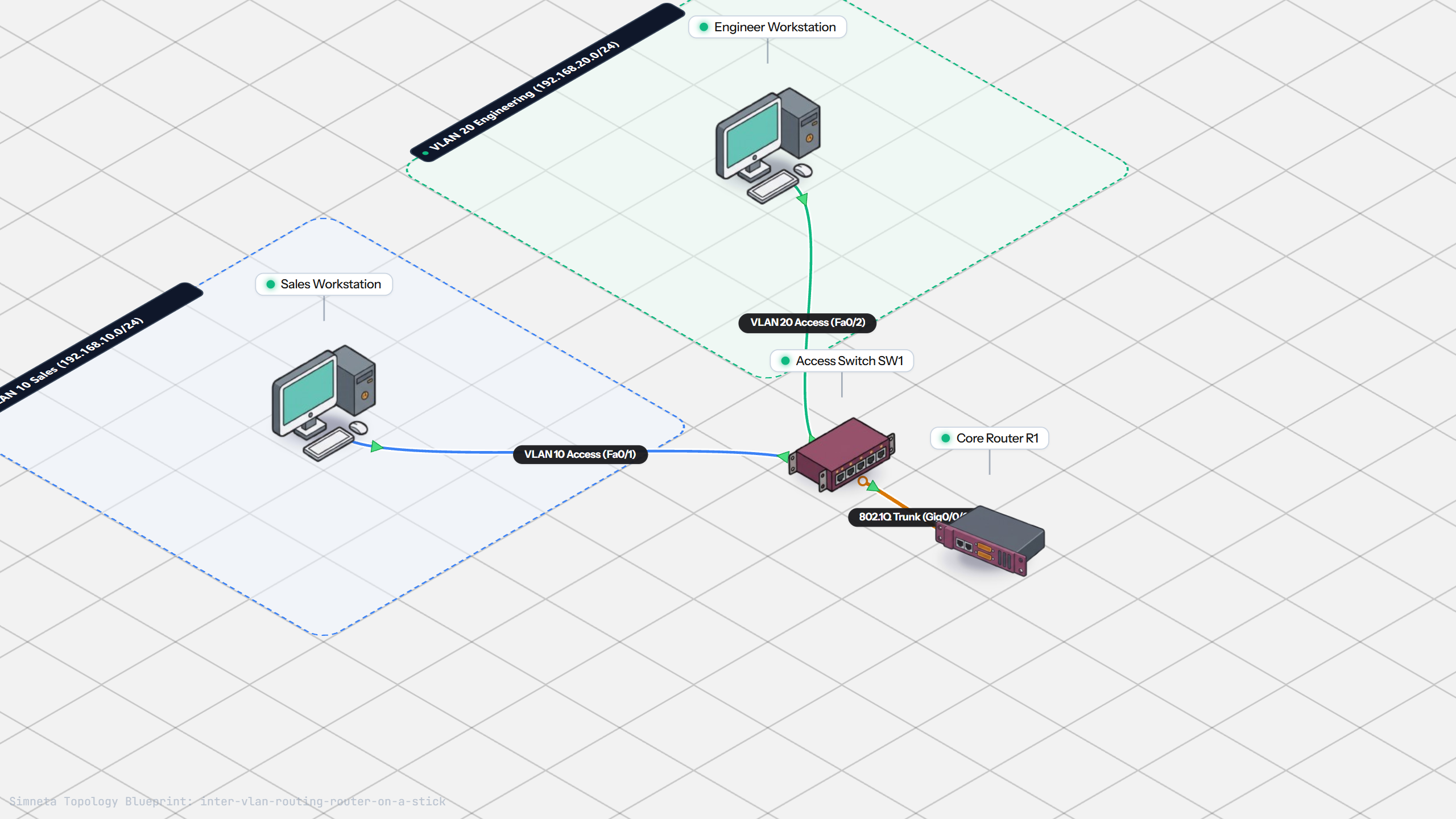
Inter-VLAN Routing with Router-on-a-Stick
Dynamic Routing with Single-Area OSPF
Gateway Redundancy with HSRP Failover
Filtering Traffic with Extended ACLs
Connecting LAN to Internet with NAT
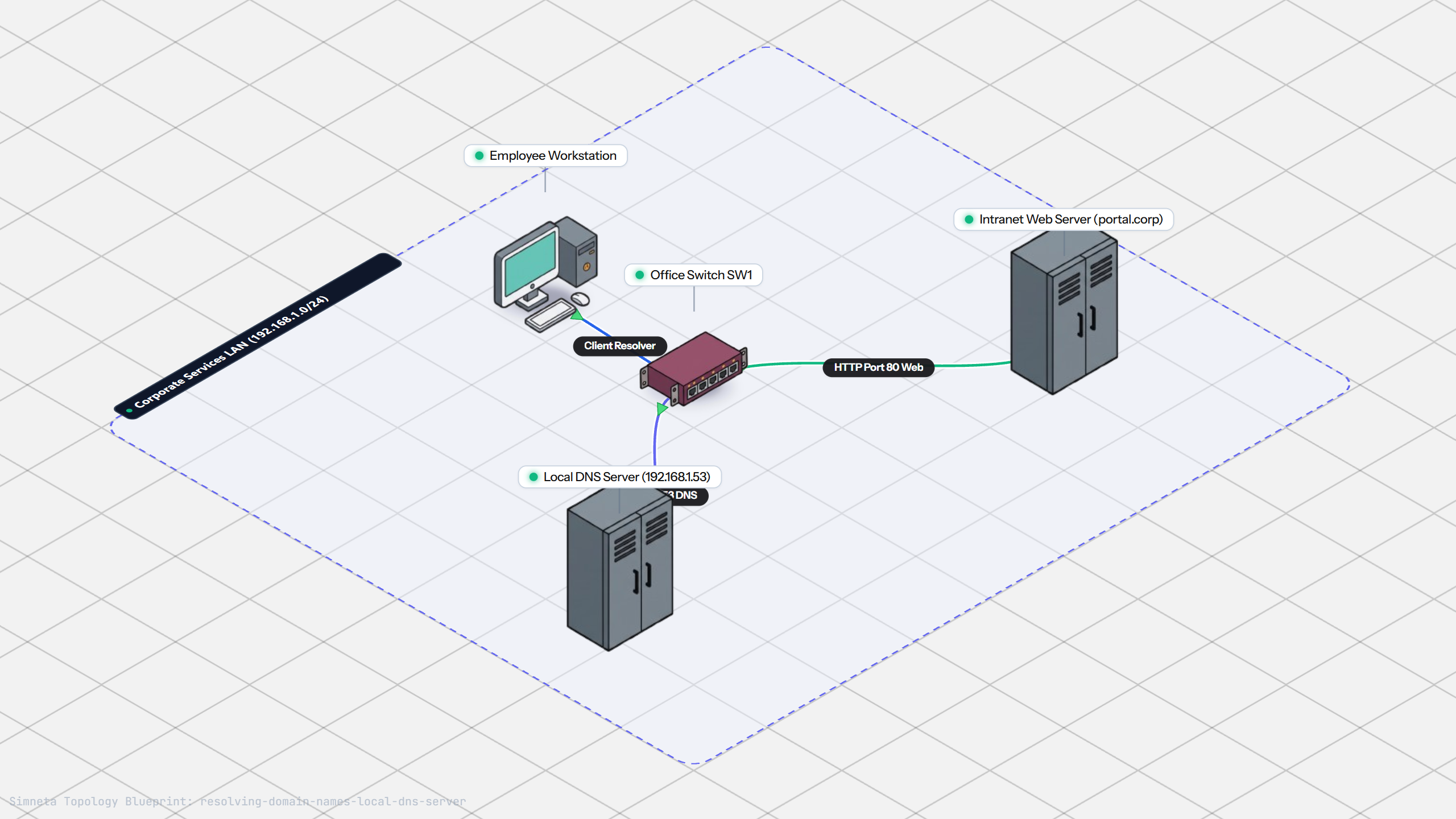
Resolving Domain Names with Local DNS
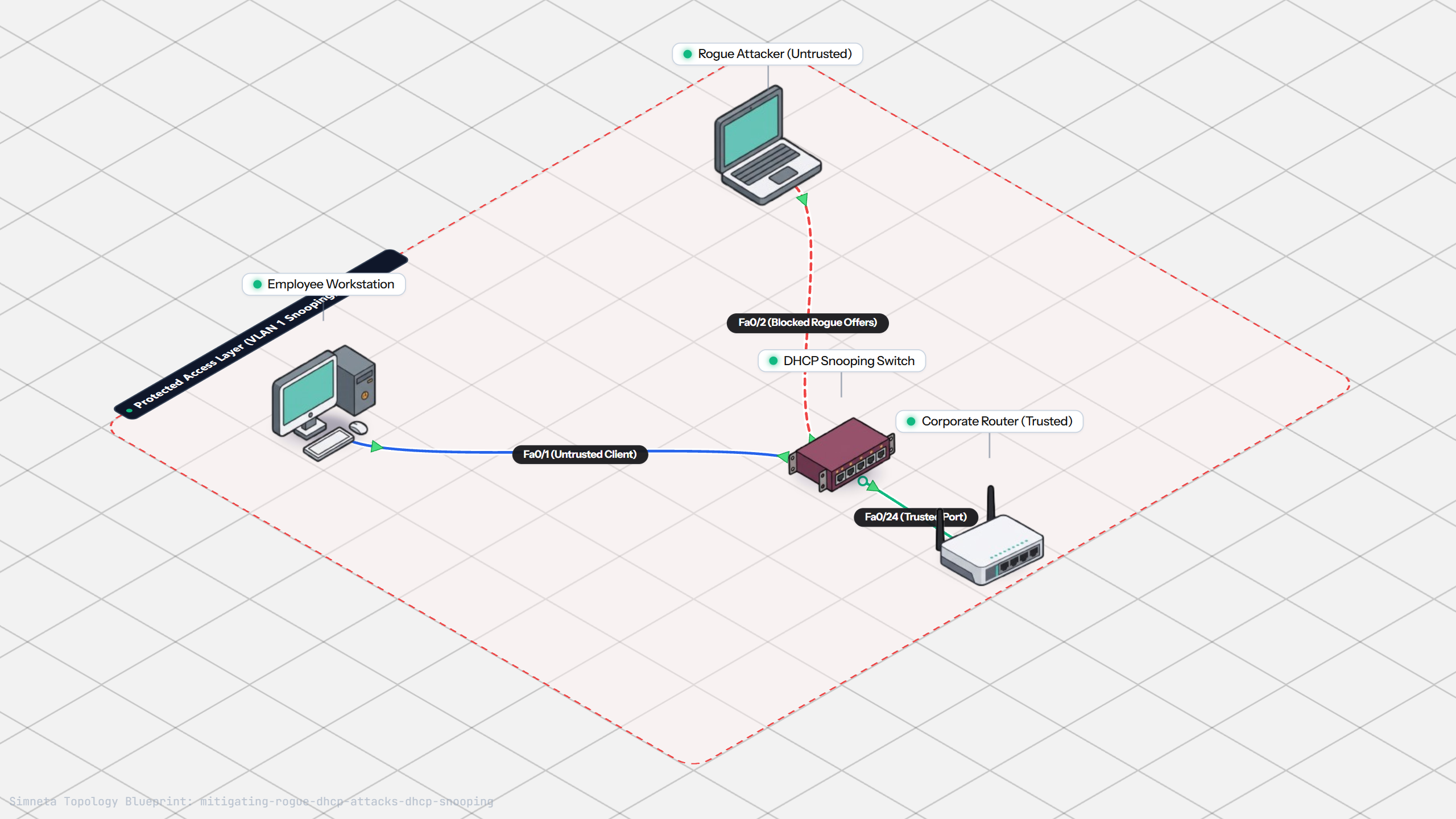
Stopping Rogue DHCP with Snooping
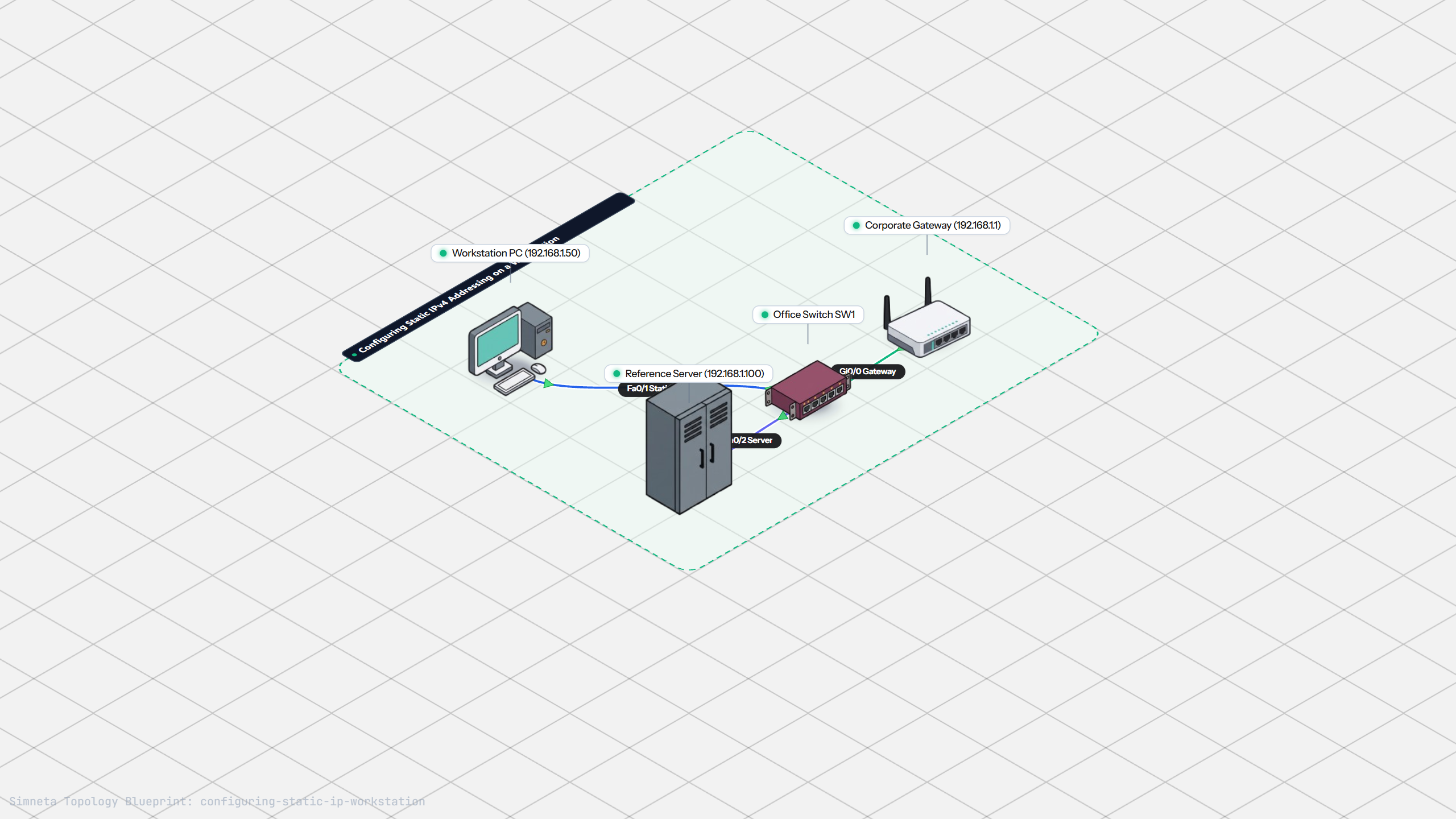
Configuring Static IP on Workstation
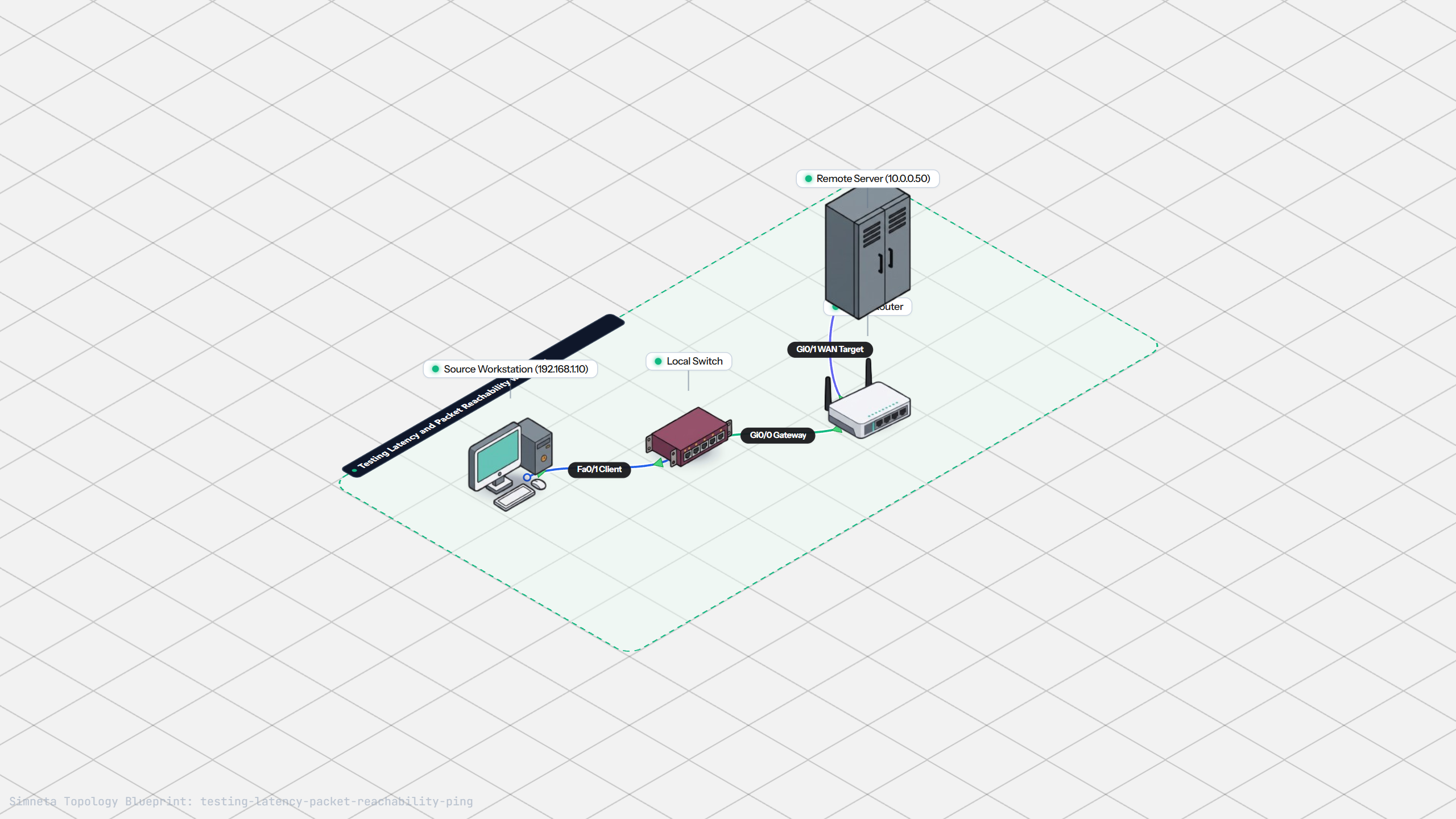
Testing Reachability and Latency with Ping
Inspecting ARP Cache Tables
Setting Up DHCP Static Reservations
Connecting Routers with /30 Subnet
Configuring Default Static Route to ISP
Blocking Ping with Standard ACL
Port Forwarding for Web Servers
Fixing Default Gateway Misconfigurations
Discussion & Community Notes
Ask questions, share configuration tips, or discuss this laboratory topology.