
Port Forwarding for Web Servers
Publish internal private network services to external clients across the internet. Master static Port Address Translation (PAT) by mapping an edge router public WAN port to an internal web server private IP address and port.
Imagine an office with hundreds of computers, all assigned private IPv4 addresses (such as 192.168.1.0/24). According to RFC 1918 standards, these private addresses are intentionally non-routable on the public internet. When an internal computer browses the web, an edge router uses Network Address Translation (NAT) to mask all outgoing traffic behind a single registered public IP address.
However, NAT creates a strict one-way barrier. While internal devices can easily reach external websites, external internet clients cannot initiate inbound connections to any computer on your private network by default. When an incoming packet knocks on your router public IP address, the router has no record of which internal computer should receive it, so it immediately drops the packet.
The standard enterprise solution to this problem is Port Forwarding (technically known as Static Port Address Translation or Inbound PAT). In this tutorial, you will configure an edge router to map incoming public HTTP requests on TCP port 80 directly to an internal web server at 192.168.1.80:80, making your local services accessible worldwide securely.
You will learn how to define NAT interface boundaries, configure persistent translation mappings, inspect live translation state tables, and verify end-to-end web delivery from an external internet client.
Network Architecture Plan
| Segment | Interface | Subnet / Address | Functional Role |
|---|---|---|---|
| Corporate Edge Router | Gi0/1 (WAN) / Gi0/0 (LAN) | 203.0.113.5 (Public) / 192.168.1.1 (Private) | NAT and Port Forwarding Gateway |
| Internal Web Server | FastEthernet0 | 192.168.1.80/24 (Port 80) | Internal HTTP Web Server |
| Office Switch | Fa0/1 - Fa0/2 | Layer 2 | Internal Distribution Switch |
| Remote Internet Client | FastEthernet0 | 198.51.100.10/24 | External Customer Laptop |
Why Inbound Traffic Fails
To understand Port Forwarding intuitively without memorizing dry networking jargon, consider the Apartment Building & Mail Courier Analogy:
If a delivery driver drops off a box labeled only "Deliver to 100 Main Street" with no recipient name or room number, security cannot guess who owns it and will discard it (packet drop).
Port Forwarding is the written standing order at the front desk: The router security guard is given a permanent instruction: "Whenever a package arrives addressed to Public Port 80 (Visitor Web Reception), immediately escort it directly to Room 192.168.1.80 on the inside floor."
In dynamic outbound NAT, the router records outgoing sessions temporarily. But when an external customer initiates an unsolicited inbound request, no existing session exists in the connection tracking table. Without a static port forwarding rule, the router drops the packet immediately.
With Port Forwarding, your entire internal enterprise network remains hidden and protected behind the router firewall, while only one specific application port (port 80) is exposed to the outside world.
This provides defense-in-depth: attackers scanning your public IP address cannot probe your database ports, internal file shares, or management switches.
Security Best Practice: Never use a DMZ host that exposes every port of an internal server. Forwarding only port 80 (HTTP) and port 443 (HTTPS) ensures administrative ports like SSH (port 22) or RDP (port 3389) remain shielded from automated internet exploit bots.
Inside vs Outside Interfaces
Before a router can perform packet translation, it must know the exact boundary between your private corporate LAN and the hostile public internet. You define this by designating router interfaces as either Inside or Outside.
In our lab topology:
GigabitEthernet0/0 connects directly to the office distribution switch and the private 192.168.1.0/24 subnet. This interface must be marked as ip nat inside.GigabitEthernet0/1 connects to the internet service provider cable with public IP 203.0.113.5. This interface must be marked as ip nat outside.Router# configure terminal
Router(config)# interface GigabitEthernet0/0
Router(config-if)# description LAN-Private-Office
Router(config-if)# ip nat inside
Router(config-if)# exit
Router(config)# interface GigabitEthernet0/1
Router(config-if)# description WAN-Public-Internet
Router(config-if)# ip nat outside
Router(config-if)# exitUnderstanding the Cisco NAT Order of Operations:
outside, the router translates the source IP from private to public before transmission.outside interface. It checks the NAT translation table first. If a matching port forwarding rule exists, it rewrites the destination IP from public to private, and only then conducts the routing table lookup.Without these interface boundary tags, the router cannot determine which translation rule to apply, causing inbound packets to fail silently.
Interface Assignment Rule: Both an inside and an outside interface must be explicitly declared. If you omit ip nat outside on the WAN port, the router will ignore inbound port forwarding rules entirely.
Configuring Port Forwarding Rules
Now configure the core static port forwarding statement in Cisco IOS. Many network students find this command confusing because its parameters appear backwards at first glance.
Let us examine each parameter component step by step to understand how the mapping operates in router memory.
This command establishes a persistent entry in the NAT translation table that remains active even across router reboots.
Router(config)# ip nat inside source static tcp 192.168.1.80 80 203.0.113.5 80
Router(config)# exitParameter-by-Parameter Command Breakdown:
ip nat inside source: Informs the router that the real device being translated is located in the inside network.static: Creates a permanent mapping in router memory that does not expire over time.tcp: Specifies the Layer 4 transport protocol used by web traffic.192.168.1.80 80: The Inside Local IP & Port. The genuine internal private IP and listening port of your web server.203.0.113.5 80: The Inside Global IP & Port. The public internet-facing identity that external visitors type into their browser.8080 to forward to internal port 80 allows hosting multiple web servers behind a single public IP address.Verify the newly installed translation rule using the privileged EXEC command show ip nat translations:
The dashes (---) in the Outside columns signify a static listener: this translation rule stands ready to accept connections from any source IP address anywhere on the internet.
Verifying Local Server Status
A common field mistake is assuming that configuring the router alone guarantees web accessibility. Before testing from the internet, you must verify two essential settings on the internal server:
192.168.1.1).In addition, ensure that any local host firewalls (such as Windows Defender Firewall or Linux iptables) are configured to permit inbound connections on TCP port 80.
Why the Default Gateway is Essential for Return Traffic:
When an external client (e.g. 198.51.100.10) sends an HTTP GET request, the packet reaches the web server.
When the web server prepares to return its HTML response, it checks the destination IP (198.51.100.10) and realizes it lies outside its local subnet (192.168.1.0/24).
Without a default gateway pointing to the router, the server has no exit route for return traffic, the response is discarded in place, and the remote customer browser times out!
Always verify local server gateway configuration before assuming that the edge router NAT configuration is faulty.
Troubleshooting Tip: If external customers report timeouts while internal office users can access http://192.168.1.80 without issue, check the web server default gateway first. Internal users share the local switch and do not need a gateway, but external visitors require it for return packets.
Testing External Customer Access
For our final verification, switch roles to an external customer sitting on the Remote Laptop in the internet cloud (IP 198.51.100.10).
Open the terminal on the Remote Client and initiate an HTTP request using the curl utility against the corporate public IP: http://203.0.113.5.
Watch the successful HTTP response payload stream back across the internet connection.
Trace the Packet Header Rewrite Lifecycle:
198.51.100.10:49152 | Dst: 203.0.113.5:80].198.51.100.10:49152 | Dst: 192.168.1.80:80].192.168.1.80:80 | Dst: 198.51.100.10:49152].192.168.1.80 back to public IP 203.0.113.5, and transmits the frame out Gi0/1 across the internet.Inspecting the router NAT table while the session is active reveals the complete four-way translation entry:
Hairpinning / NAT Loopback: If internal office users try to browse http://203.0.113.5 from inside the LAN, standard NAT drops the packets unless NAT Loopback (Hairpinning) is enabled. Internal users should access http://192.168.1.80 or use split-horizon DNS.

Related Network Labs
Continue your network simulation practice with these recommended labs.
Building a Local Office LAN with a Switch
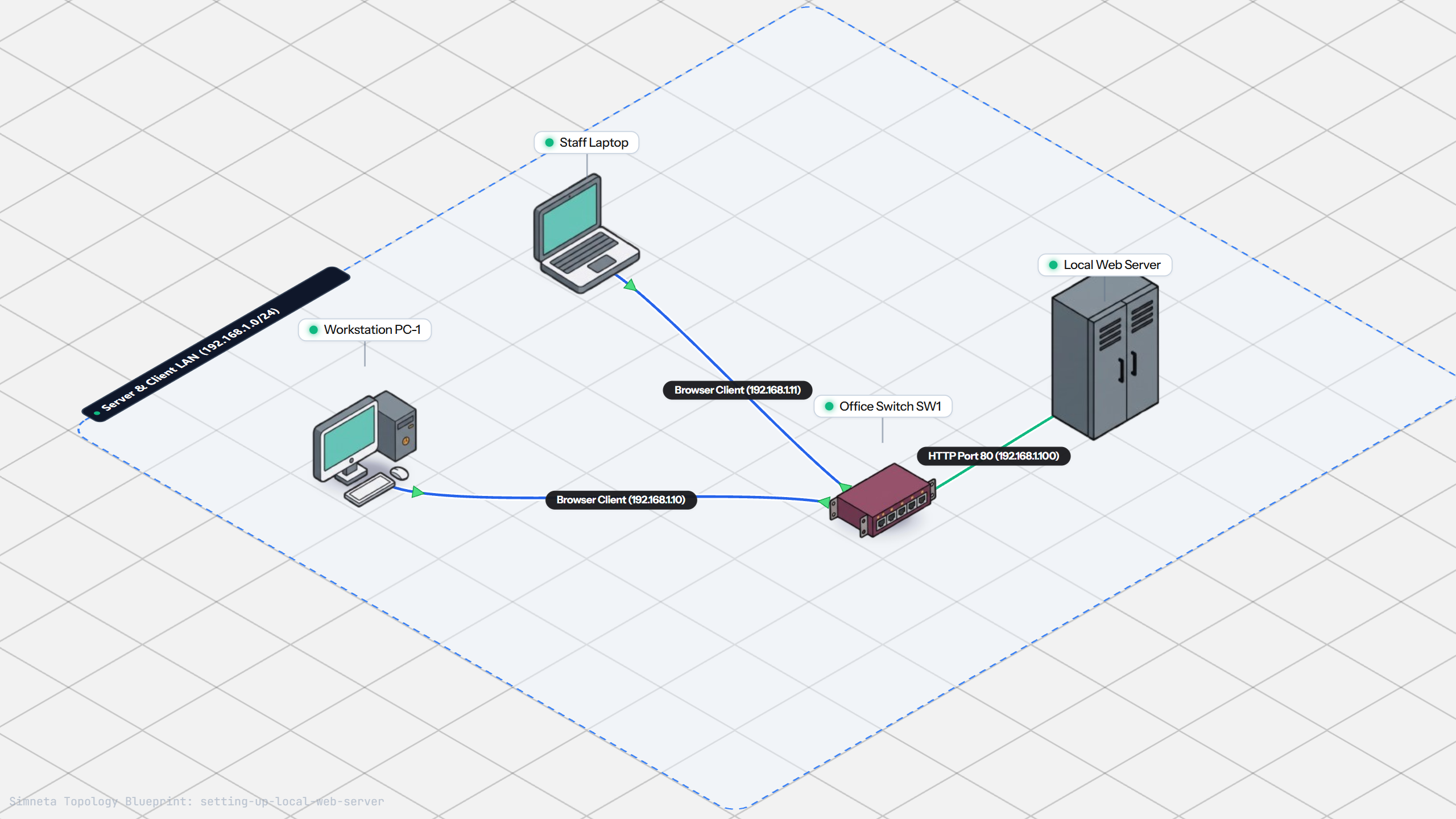
Setting Up a Local Web Server
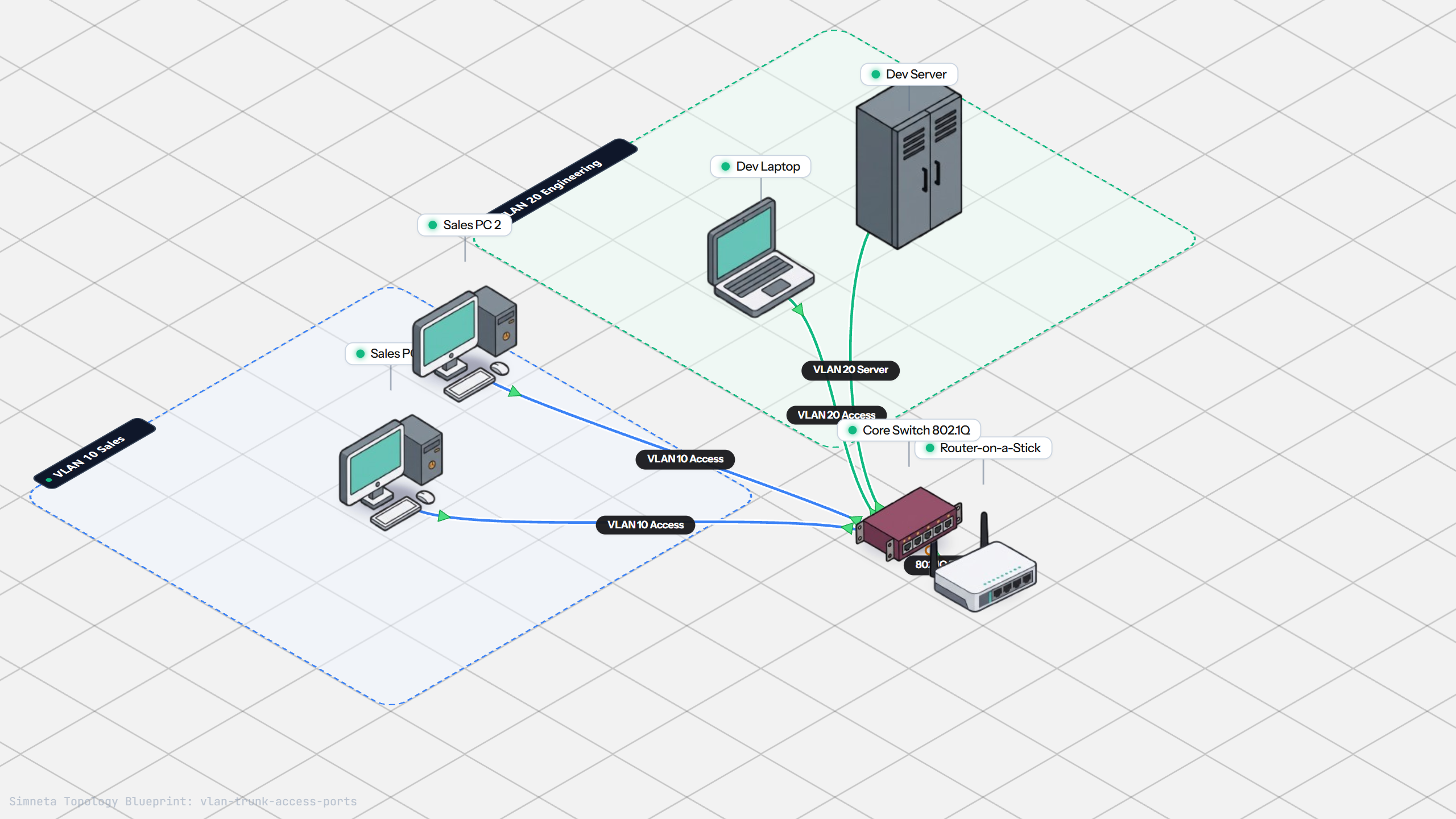
VLAN Trunking with 802.1Q
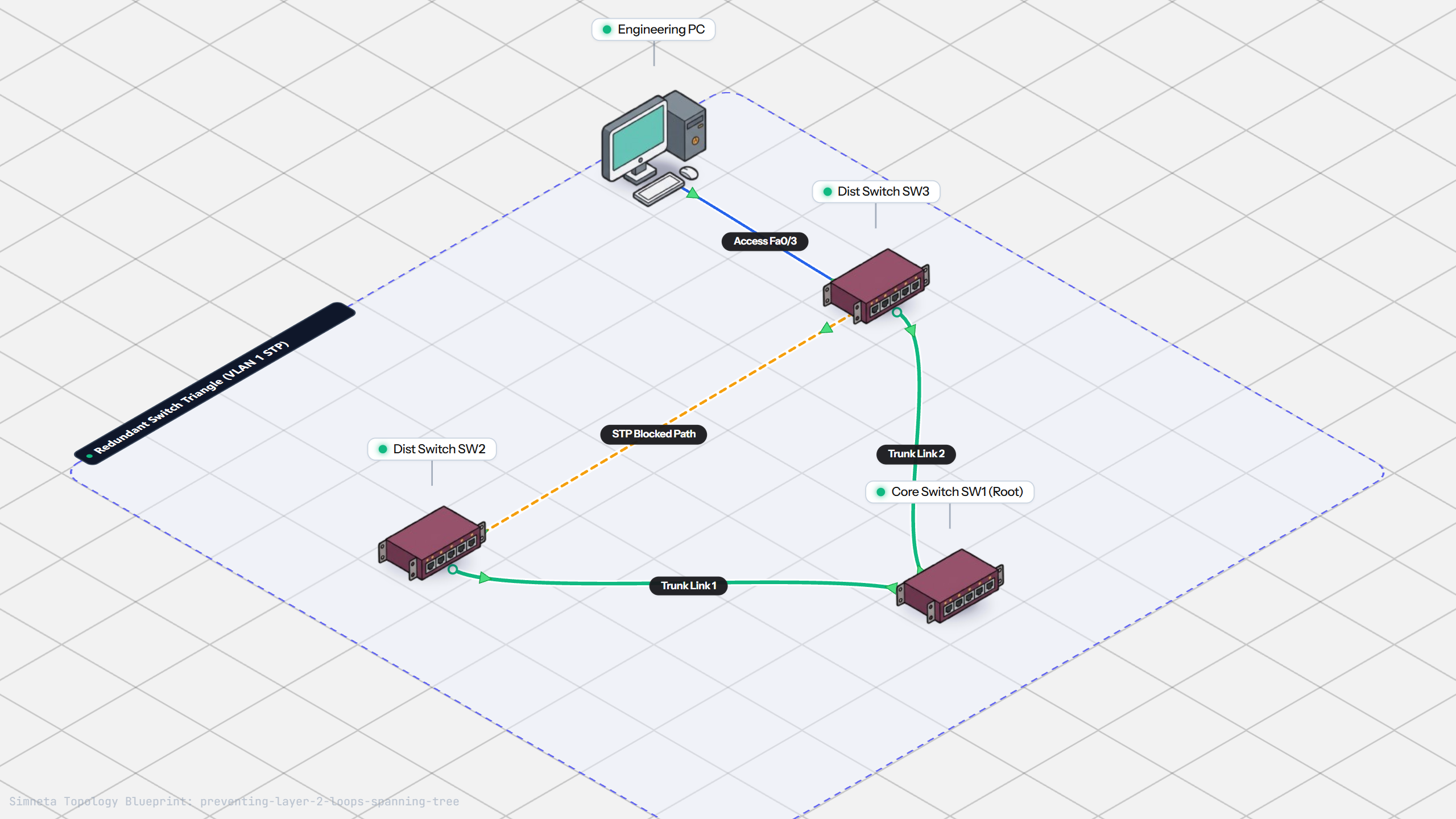
Preventing Loops with Spanning Tree
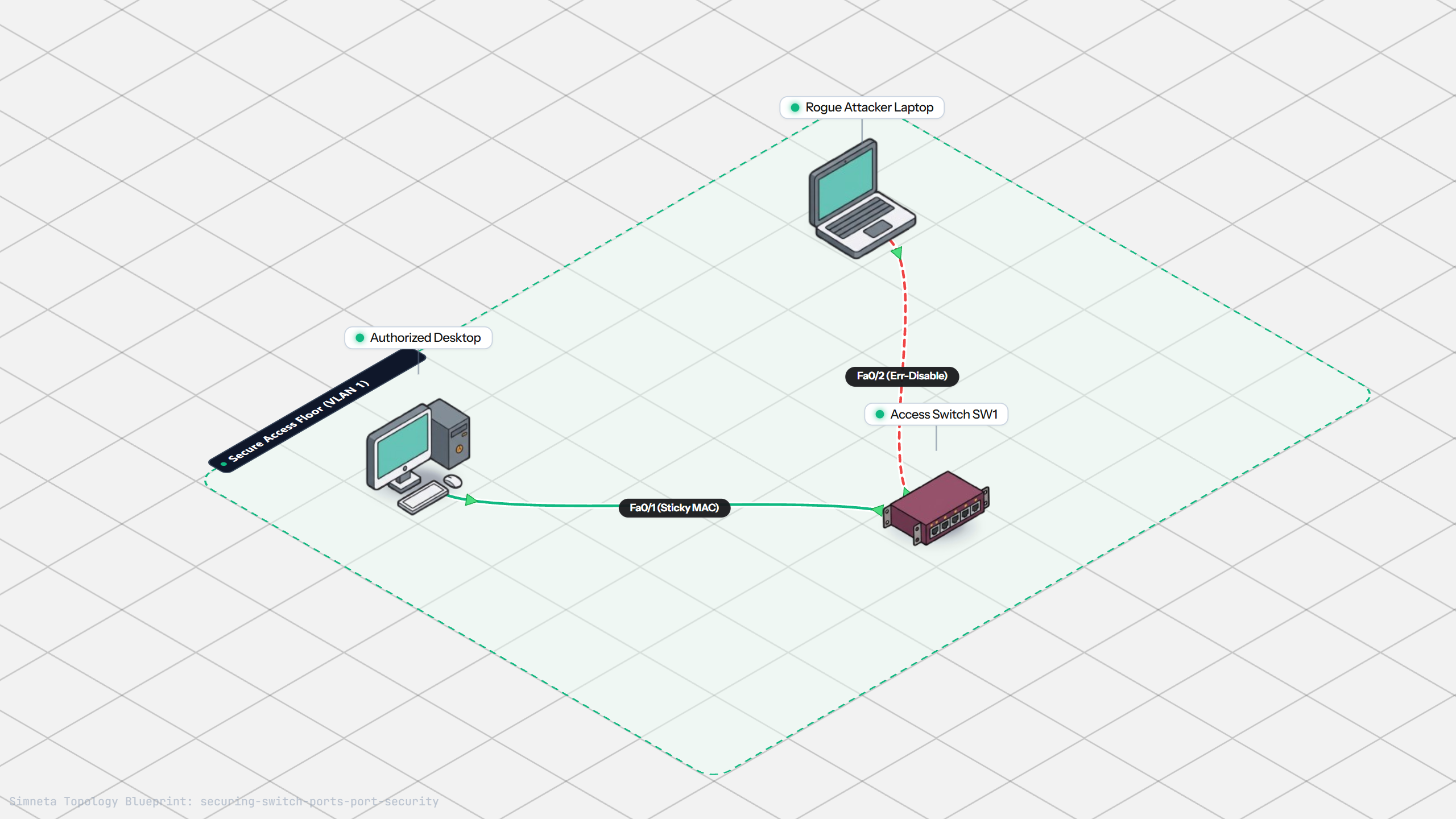
Securing Switch Ports with Port Security
Bundling Switch Uplinks with LACP EtherChannel
Inter-VLAN Routing with Router-on-a-Stick
Dynamic Routing with Single-Area OSPF
Gateway Redundancy with HSRP Failover
Filtering Traffic with Extended ACLs
Connecting LAN to Internet with NAT
Resolving Domain Names with Local DNS
Stopping Rogue DHCP with Snooping
Connecting Two Switches with an Access Uplink
Configuring Static IP on Workstation
Testing Reachability and Latency with Ping
Inspecting ARP Cache Tables
Setting Up DHCP Static Reservations
Connecting Routers with /30 Subnet
Configuring Default Static Route to ISP
Blocking Ping with Standard ACL
Fixing Default Gateway Misconfigurations
Discussion & Community Notes
Ask questions, share configuration tips, or discuss this laboratory topology.