
Hardware Port Faceplates
Inspect physical RJ45 ports and live LED status lights on routers and switches.
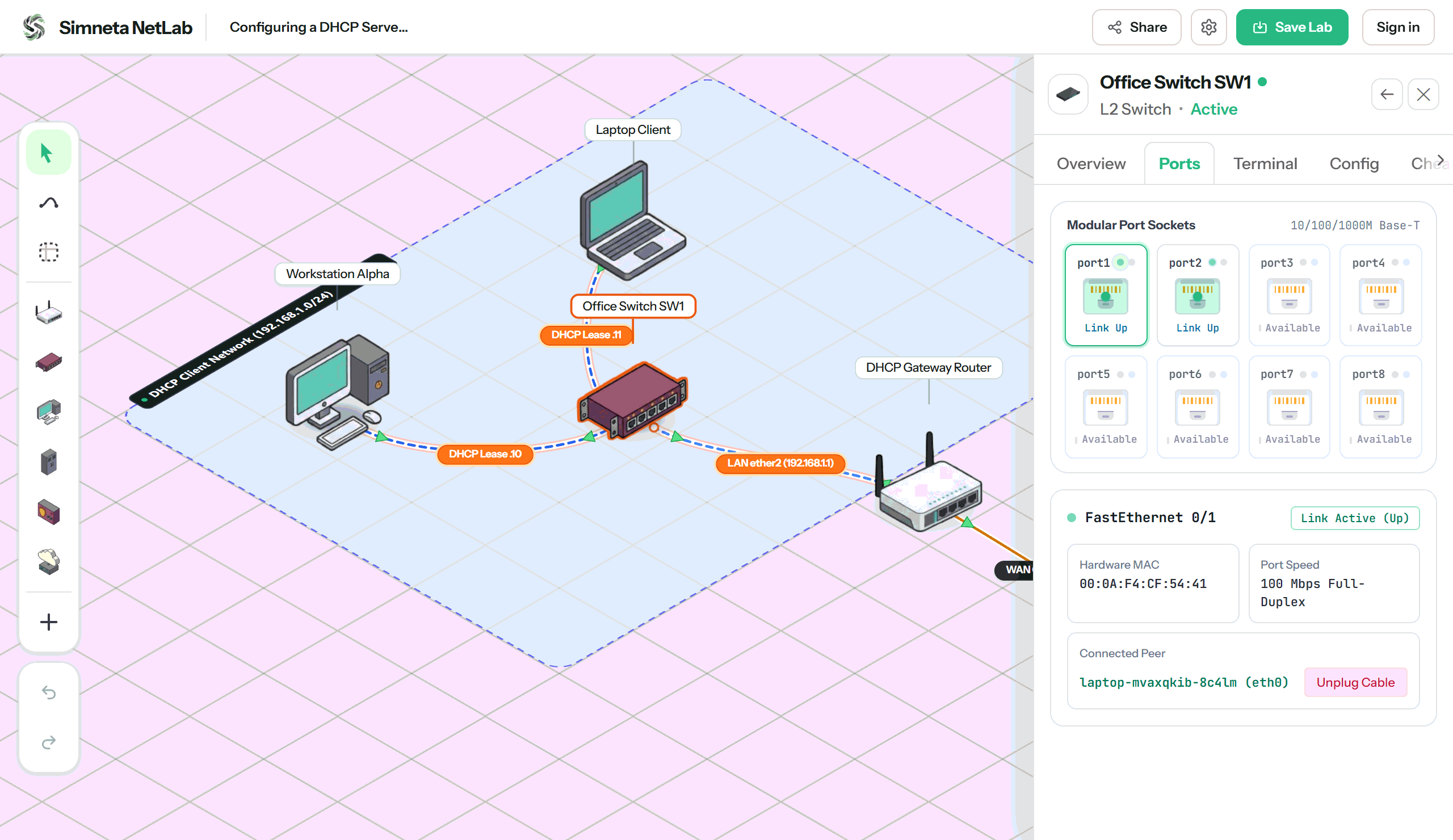
Overview
Most network simulators abstract away physical hardware, representing devices merely as abstract logical circular symbols. When students transition to physical server rooms or telecommunication closets, they often struggle to identify port layouts, LED link indicators, and modular interface expansions. Simneta NetLab bridges this gap by bringing photorealistic physical hardware faceplates directly into the web interface.
Inspect enterprise switch and router chassis with faithful front-panel layouts. View dual-row RJ45 1000BASE-T Gigabit Ethernet ports, SFP+ optical transceiver cages, and dedicated RJ45/USB console management ports. Each socket features dynamic bi-color status LEDs that accurately reflect physical carrier detection, interface administrative state, and real-time frame transmission.
Physical cabling interactions are tactile and intuitive: click directly on any port jack to insert or remove copper UTP Cat6 patch cords or optical fiber cables. Verify link negotiation instantly without typing CLI commands, bridging the critical gap between physical layer cabling and higher-level routing topologies.
Key Feature Capabilities
A clear breakdown of how this feature works and helps you learn networking.
Realistic Hardware Faceplates
Detailed front-panel layouts for rackmount switches, branch routers, and PC network cards with accurate port numbering and labels.
Live LED Status Lights
Realistic indicator lights show when cables are connected (green), transmitting traffic (blinking), or unplugged (gray).
Direct Click-to-Cable Sockets
Click directly on any port jack to plug in or unplug cables, making cabling practice fast, visual, and intuitive.
Quick Port Information
Click any port to see link speed, MTU, connected partner device name, and current IP configuration at a glance.
What You Can Do
Realistic 8-port and 24-port switch front faceplate views
Live bi-color LED indicators (Green = Link Up, Gray = Disconnected, Flashing = Traffic)
Click any port socket to plug in or unplug cables directly
Inspect per-port parameters: Port ID, link speed (1 Gbps), and assigned IP
Hardware router interfaces: WAN port ether1, LAN bridge sockets, and SFP fiber slots
Feature Specifications
A quick breakdown of how this capability works and why it helps your network practice.
| Aspect | How It Works in Simneta | Why It Matters |
|---|---|---|
| Interface Formats | Gigabit Ethernet RJ45, SFP+ Fiber Transceiver cages, Console ports | Understand real port layouts before touching physical server racks |
| Link State Lights | Dynamic bi-color LED link and activity indicators | Diagnose disconnected cables instantly at a glance |
| Interactive Actions | One-click cable plug and unplug directly on physical port jacks | Practice physical layer cabling scenarios and link failover tests |
| Hardware Types | Enterprise Rackmount Switches, Modular Routers, and Endpoints | Familiarize students with genuine data center hardware aesthetics |